> ## Documentation Index
> Fetch the complete documentation index at: https://www.traceloop.com/docs/llms.txt
> Use this file to discover all available pages before exploring further.
# Managing API Keys
> Generate and manage API keys for sending traces and accessing Traceloop features
API keys are required to authenticate your application with Traceloop. Each API key is tied to a specific project and environment combination, determining where your traces and data will appear.
 ## Quick Start: Generate Your First API Key
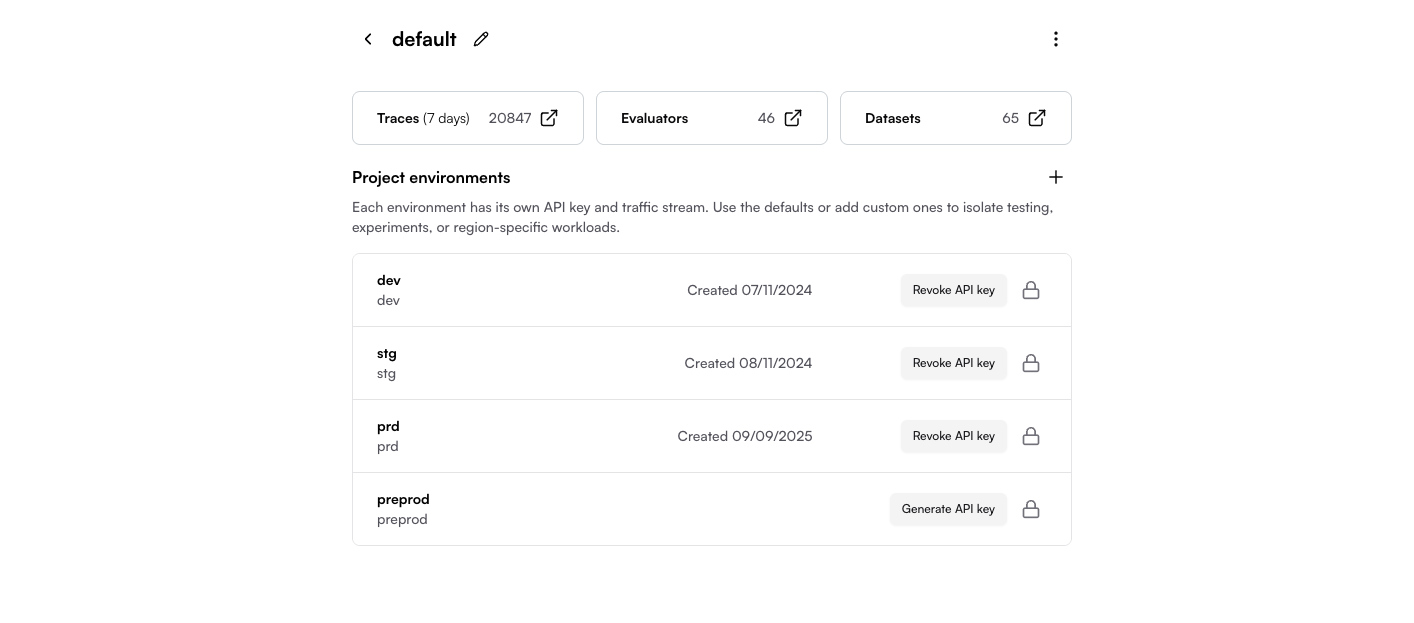
Go to [Settings → Organization](https://app.traceloop.com/settings/api-keys) in your Traceloop dashboard.
Click on the project where you want to generate an API key (e.g., "Default project").
If you haven't created a project yet, see [Projects and Environments](/settings/projects-and-environments).
Find the environment you want to use (dev, stg, or prd) and click **Generate API key**.
**Copy the API key immediately!** The full key is only shown once and cannot be retrieved later.
After you close or reload the page, you'll need to revoke and generate a new key if you lose it.
The key will be displayed partially masked, but you can copy the full key using the copy button.
Export the API key in your application:
```bash theme={null}
export TRACELOOP_API_KEY=your_api_key_here
```
Or set it in your `.env` file:
```bash theme={null}
TRACELOOP_API_KEY=your_api_key_here
```
Done! Your application can now send traces and access Traceloop features.
## Understanding API Keys
### How API Keys Work
Each API key is scoped to a specific **project + environment** combination:
* **Project**: Isolates data for different applications or teams (e.g., "orders-service", "users-service")
* **Environment**: Separates deployment stages (dev, stg, prd)
When you use an API key, Traceloop automatically knows where to save your data based on the key itself.
If the `TRACELOOP_API_KEY` environment variable is set, the SDK will automatically use it. You don't need to pass it explicitly in your code.
**Example:**
* API key from "web-app" → "dev" sends traces to the "web-app" project's dev environment
* API key from "api-service" → "prd" sends traces to the "api-service" project's prd environment
### Viewing Your Data
To see your traces in the dashboard:
1. Select the correct **project** from the project dropdown
2. Filter by **environment** if needed
**Not seeing your traces?** Make sure you're viewing the same project and environment
that matches your API key.
## Common Scenarios
### Local Development
Use your dev environment API key:
```bash theme={null}
# In your .env or shell
export TRACELOOP_API_KEY=your_development_key
```
### CI/CD Pipeline
Use stg or prd keys in your deployment configuration:
```yaml theme={null}
# Example: GitHub Actions
env:
TRACELOOP_API_KEY: ${{ secrets.TRACELOOP_STG_KEY }}
```
```yaml theme={null}
# Example: Docker Compose
environment:
- TRACELOOP_API_KEY=${TRACELOOP_PRD_KEY}
```
### Multiple Projects from One Application
If you need to send data to different projects from the same codebase, pass the API key directly in code instead of using environment variables:
```python Python theme={null}
from traceloop.sdk import Traceloop
# Initialize with specific API key
Traceloop.init(api_key="your_project_specific_key")
```
```javascript TypeScript / JavaScript theme={null}
import * as traceloop from "@traceloop/node-server-sdk";
// Initialize with specific API key
traceloop.initialize({
apiKey: "your_project_specific_key"
});
```
```go Go theme={null}
import "github.com/traceloop/go-sdk/traceloop"
// Initialize with specific API key
traceloop.Init(traceloop.Config{
APIKey: "your_project_specific_key",
})
```
## Managing Your API Keys
### Revoking an API Key
If your API key is compromised or you need to rotate keys:
1. Go to Settings → Organization → Select your project
2. Find the environment with the key you want to revoke
3. Click **Revoke API key**
4. Generate a new key immediately
5. Update your application configuration with the new key
Revoking a key immediately stops all applications using it from sending data.
Make sure to update your configuration before revoking production keys.
### Lost Your API Key?
If you lose your API key and didn't save it:
1. You **cannot** retrieve the original key
2. You must **revoke** the old key and **generate** a new one
3. Update your application with the new key
This is a security feature - API keys are never stored in retrievable form.
### Best Practices
Store API keys in secret management systems like AWS Secrets Manager, Azure Key Vault,
HashiCorp Vault, or 1Password instead of hardcoding them.
Periodically rotate your API keys, especially for production environments.
Schedule key rotation as part of your security practices.
Never use prd API keys in dev or stg.
This prevents accidental data mixing and security risks.
Don't commit API keys to version control. Use environment variables
or secret management systems instead.
## Troubleshooting
### Authentication Failed
**Problem:** Getting authentication errors when initializing the SDK.
**Solutions:**
* Verify the API key is correctly set as `TRACELOOP_API_KEY`
* Check if the key has been revoked (generate a new one if needed)
* Ensure there are no extra spaces or characters in the key
### Not Seeing Traces
**Problem:** Application runs but traces don't appear in dashboard.
**Solutions:**
* Confirm you're viewing the correct **project** in the dashboard dropdown
* Check you're filtering by the correct **environment**
* Verify the API key matches the project + environment you're viewing
* Check SDK initialization logs for connection errors
### Wrong Data Appearing
**Problem:** Seeing unexpected traces or data in your project.
**Solutions:**
* Double-check which API key you're using (`echo $TRACELOOP_API_KEY`)
* Verify the API key belongs to the intended project + environment
* Check if other team members are using the same project
### Multiple Applications Sending to Same Project
**Problem:** Want to separate data from different services but they're in the same project.
**Solutions:**
* Create a separate project for each application/service
* Generate unique API keys for each project
* See [Projects and Environments](/settings/projects-and-environments) for more details
## Related Resources
Learn about organizing your applications and deployment stages
Set up OpenLLMetry SDK with your API key
Use API keys to access Traceloop's REST API
Configure API keys in self-hosted deployments
## Quick Start: Generate Your First API Key
Go to [Settings → Organization](https://app.traceloop.com/settings/api-keys) in your Traceloop dashboard.
Click on the project where you want to generate an API key (e.g., "Default project").
If you haven't created a project yet, see [Projects and Environments](/settings/projects-and-environments).
Find the environment you want to use (dev, stg, or prd) and click **Generate API key**.
**Copy the API key immediately!** The full key is only shown once and cannot be retrieved later.
After you close or reload the page, you'll need to revoke and generate a new key if you lose it.
The key will be displayed partially masked, but you can copy the full key using the copy button.
Export the API key in your application:
```bash theme={null}
export TRACELOOP_API_KEY=your_api_key_here
```
Or set it in your `.env` file:
```bash theme={null}
TRACELOOP_API_KEY=your_api_key_here
```
Done! Your application can now send traces and access Traceloop features.
## Understanding API Keys
### How API Keys Work
Each API key is scoped to a specific **project + environment** combination:
* **Project**: Isolates data for different applications or teams (e.g., "orders-service", "users-service")
* **Environment**: Separates deployment stages (dev, stg, prd)
When you use an API key, Traceloop automatically knows where to save your data based on the key itself.
If the `TRACELOOP_API_KEY` environment variable is set, the SDK will automatically use it. You don't need to pass it explicitly in your code.
**Example:**
* API key from "web-app" → "dev" sends traces to the "web-app" project's dev environment
* API key from "api-service" → "prd" sends traces to the "api-service" project's prd environment
### Viewing Your Data
To see your traces in the dashboard:
1. Select the correct **project** from the project dropdown
2. Filter by **environment** if needed
**Not seeing your traces?** Make sure you're viewing the same project and environment
that matches your API key.
## Common Scenarios
### Local Development
Use your dev environment API key:
```bash theme={null}
# In your .env or shell
export TRACELOOP_API_KEY=your_development_key
```
### CI/CD Pipeline
Use stg or prd keys in your deployment configuration:
```yaml theme={null}
# Example: GitHub Actions
env:
TRACELOOP_API_KEY: ${{ secrets.TRACELOOP_STG_KEY }}
```
```yaml theme={null}
# Example: Docker Compose
environment:
- TRACELOOP_API_KEY=${TRACELOOP_PRD_KEY}
```
### Multiple Projects from One Application
If you need to send data to different projects from the same codebase, pass the API key directly in code instead of using environment variables:
```python Python theme={null}
from traceloop.sdk import Traceloop
# Initialize with specific API key
Traceloop.init(api_key="your_project_specific_key")
```
```javascript TypeScript / JavaScript theme={null}
import * as traceloop from "@traceloop/node-server-sdk";
// Initialize with specific API key
traceloop.initialize({
apiKey: "your_project_specific_key"
});
```
```go Go theme={null}
import "github.com/traceloop/go-sdk/traceloop"
// Initialize with specific API key
traceloop.Init(traceloop.Config{
APIKey: "your_project_specific_key",
})
```
## Managing Your API Keys
### Revoking an API Key
If your API key is compromised or you need to rotate keys:
1. Go to Settings → Organization → Select your project
2. Find the environment with the key you want to revoke
3. Click **Revoke API key**
4. Generate a new key immediately
5. Update your application configuration with the new key
Revoking a key immediately stops all applications using it from sending data.
Make sure to update your configuration before revoking production keys.
### Lost Your API Key?
If you lose your API key and didn't save it:
1. You **cannot** retrieve the original key
2. You must **revoke** the old key and **generate** a new one
3. Update your application with the new key
This is a security feature - API keys are never stored in retrievable form.
### Best Practices
Store API keys in secret management systems like AWS Secrets Manager, Azure Key Vault,
HashiCorp Vault, or 1Password instead of hardcoding them.
Periodically rotate your API keys, especially for production environments.
Schedule key rotation as part of your security practices.
Never use prd API keys in dev or stg.
This prevents accidental data mixing and security risks.
Don't commit API keys to version control. Use environment variables
or secret management systems instead.
## Troubleshooting
### Authentication Failed
**Problem:** Getting authentication errors when initializing the SDK.
**Solutions:**
* Verify the API key is correctly set as `TRACELOOP_API_KEY`
* Check if the key has been revoked (generate a new one if needed)
* Ensure there are no extra spaces or characters in the key
### Not Seeing Traces
**Problem:** Application runs but traces don't appear in dashboard.
**Solutions:**
* Confirm you're viewing the correct **project** in the dashboard dropdown
* Check you're filtering by the correct **environment**
* Verify the API key matches the project + environment you're viewing
* Check SDK initialization logs for connection errors
### Wrong Data Appearing
**Problem:** Seeing unexpected traces or data in your project.
**Solutions:**
* Double-check which API key you're using (`echo $TRACELOOP_API_KEY`)
* Verify the API key belongs to the intended project + environment
* Check if other team members are using the same project
### Multiple Applications Sending to Same Project
**Problem:** Want to separate data from different services but they're in the same project.
**Solutions:**
* Create a separate project for each application/service
* Generate unique API keys for each project
* See [Projects and Environments](/settings/projects-and-environments) for more details
## Related Resources
Learn about organizing your applications and deployment stages
Set up OpenLLMetry SDK with your API key
Use API keys to access Traceloop's REST API
Configure API keys in self-hosted deployments