> ## Documentation Index
> Fetch the complete documentation index at: https://www.traceloop.com/docs/llms.txt
> Use this file to discover all available pages before exploring further.
# Prompt Registry
> Manage your prompts on the Traceloop platform
Traceloop's Prompt Registry is where you manage your prompts. You can create, edit, evaluate and deploy prompts to your environments.
## Configuring Prompts
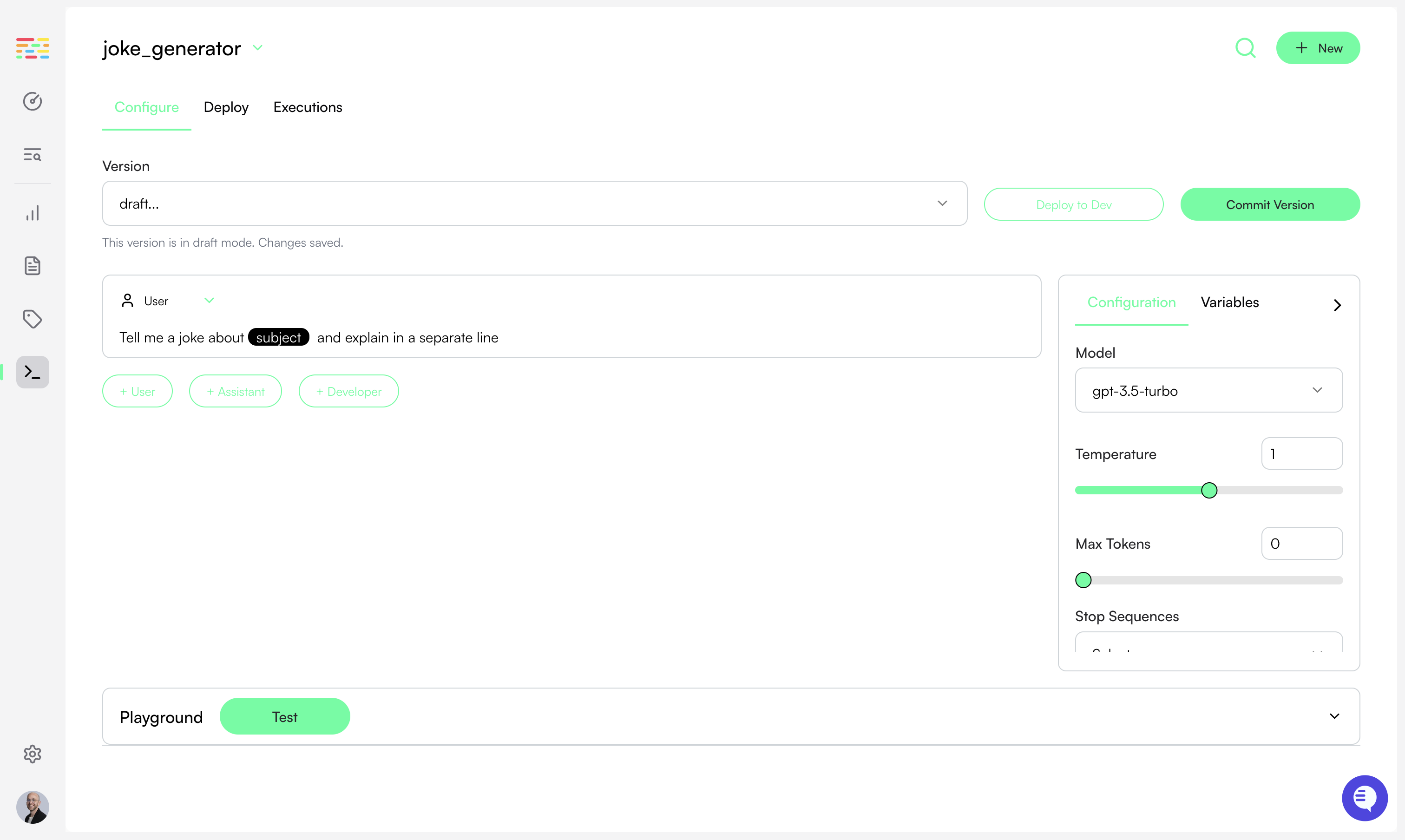
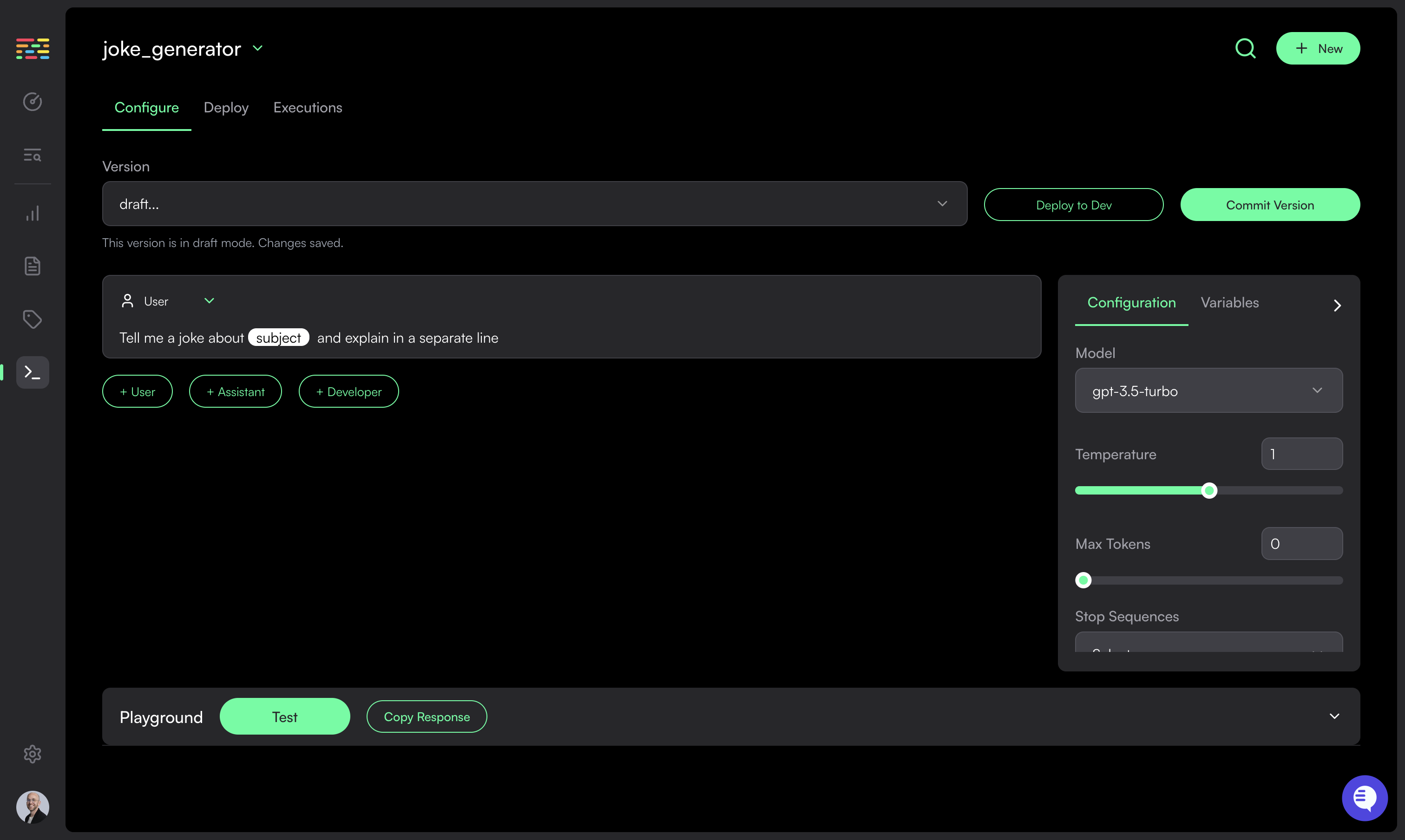 The prompt configuration is composed of two parts:
* The prompt template (system and/or user prompts)
* The model configuration (temperature, top\_p, etc.)
Your prompt template can include variables. Variables are defined according to
the syntax of the parser specified. For example, if using `jinjia2` the syntax
will be `{{ variable_name }}`. You can then pass variable values to the SDK
when calling `get_prompt`. See the example on the [SDK
Usage](/prompts/sdk-usage) section.
Initially, prompts are created in `Draft Mode`. In this mode, you can make changes to the prompt and configuration. You can also test your prompt in the playground (see below).
## Testing a Prompt Configuration (Prompt Playground)
By using the prompt playground you can iterate and refine your prompt before deploying it.
The prompt configuration is composed of two parts:
* The prompt template (system and/or user prompts)
* The model configuration (temperature, top\_p, etc.)
Your prompt template can include variables. Variables are defined according to
the syntax of the parser specified. For example, if using `jinjia2` the syntax
will be `{{ variable_name }}`. You can then pass variable values to the SDK
when calling `get_prompt`. See the example on the [SDK
Usage](/prompts/sdk-usage) section.
Initially, prompts are created in `Draft Mode`. In this mode, you can make changes to the prompt and configuration. You can also test your prompt in the playground (see below).
## Testing a Prompt Configuration (Prompt Playground)
By using the prompt playground you can iterate and refine your prompt before deploying it.
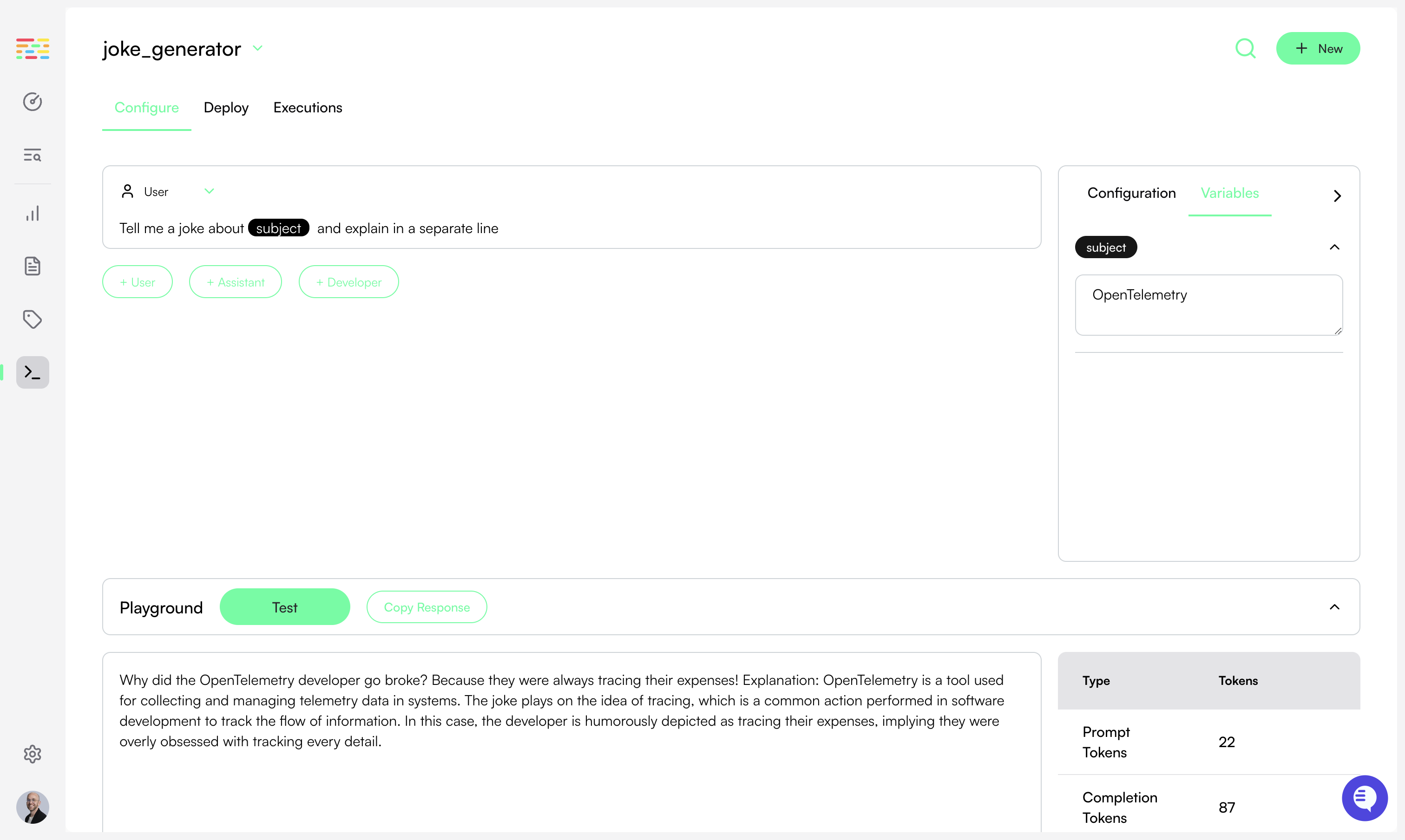
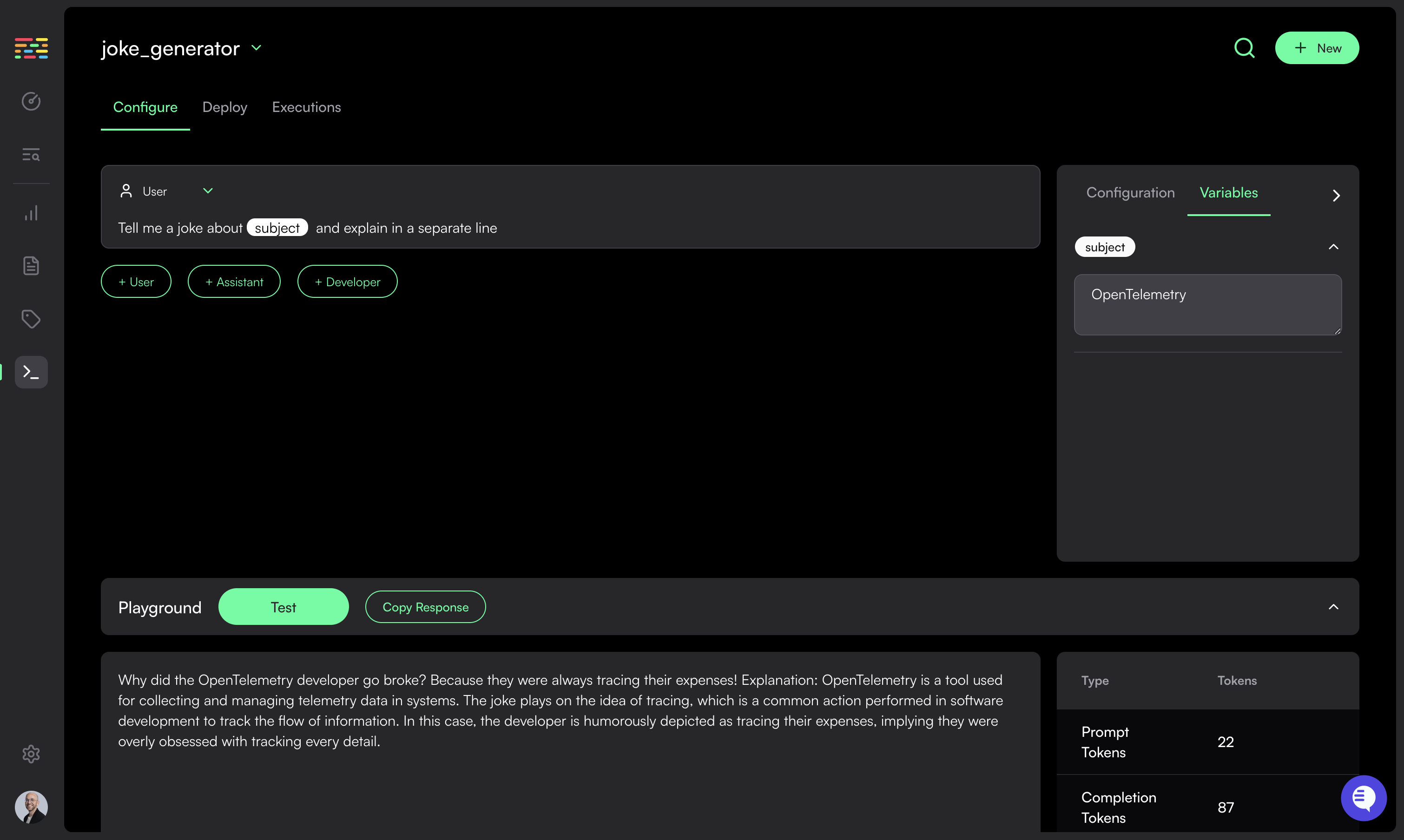 Simply click on the `Test` button in the playground tab at the bottom of the screen.
If your prompt includes variables, then you need to define values for them before testing.
Choose `Variables` in the right side bar and assign a value to each.
Once you click the `Test` button your prompt template will be rendered with the values you provided and will be sent to the configured LLM with the model configuration defined.
The completion response (including token usage) will be displayed in the playground.
## Deploying Prompts
Simply click on the `Test` button in the playground tab at the bottom of the screen.
If your prompt includes variables, then you need to define values for them before testing.
Choose `Variables` in the right side bar and assign a value to each.
Once you click the `Test` button your prompt template will be rendered with the values you provided and will be sent to the configured LLM with the model configuration defined.
The completion response (including token usage) will be displayed in the playground.
## Deploying Prompts
 Draft mode prompts can only be deployed to the `development` environment.
Once you are satisfied with the prompt, you can publish it and make it available to deploy in all environments.
Once published, the prompt version cannot be edited anymore.
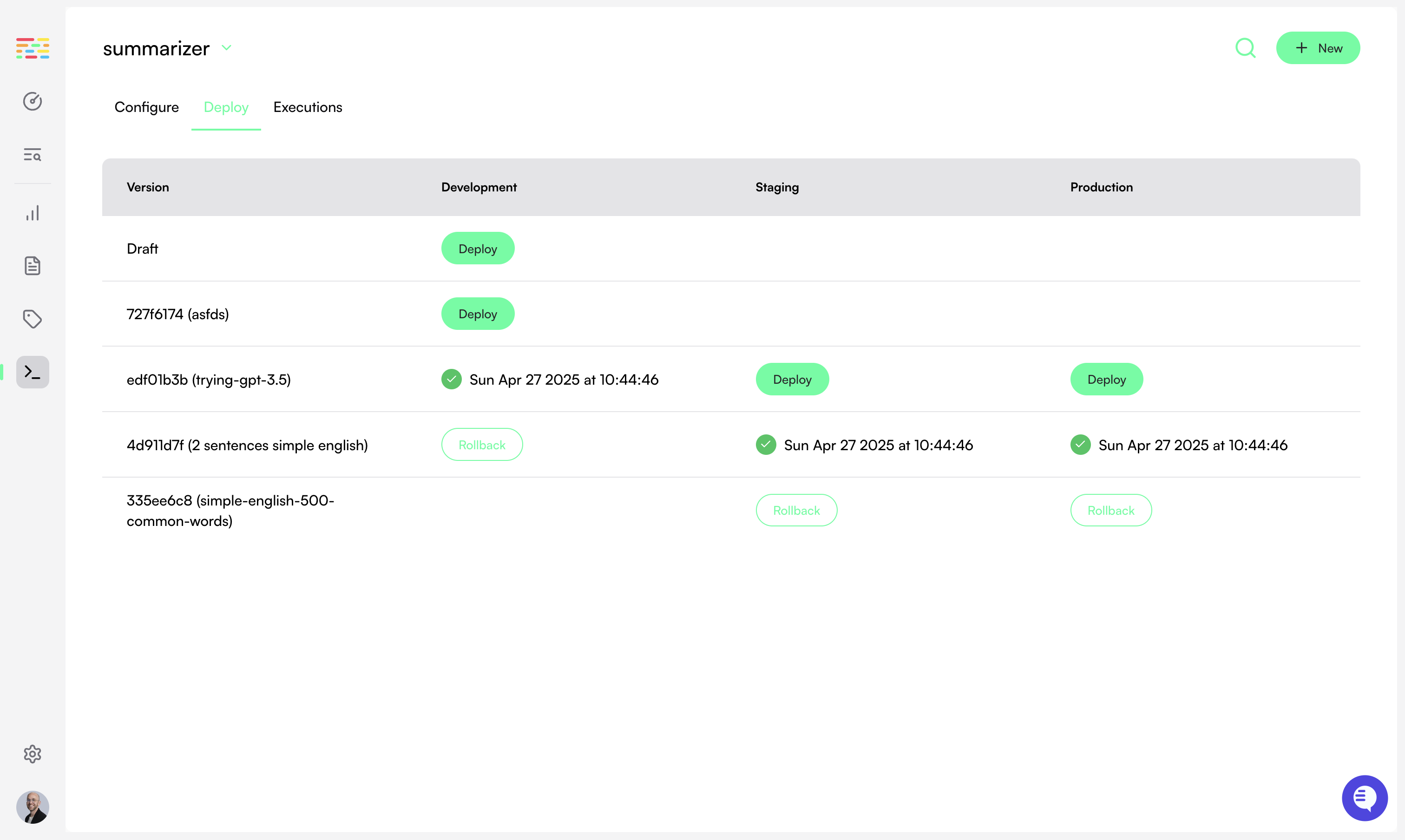
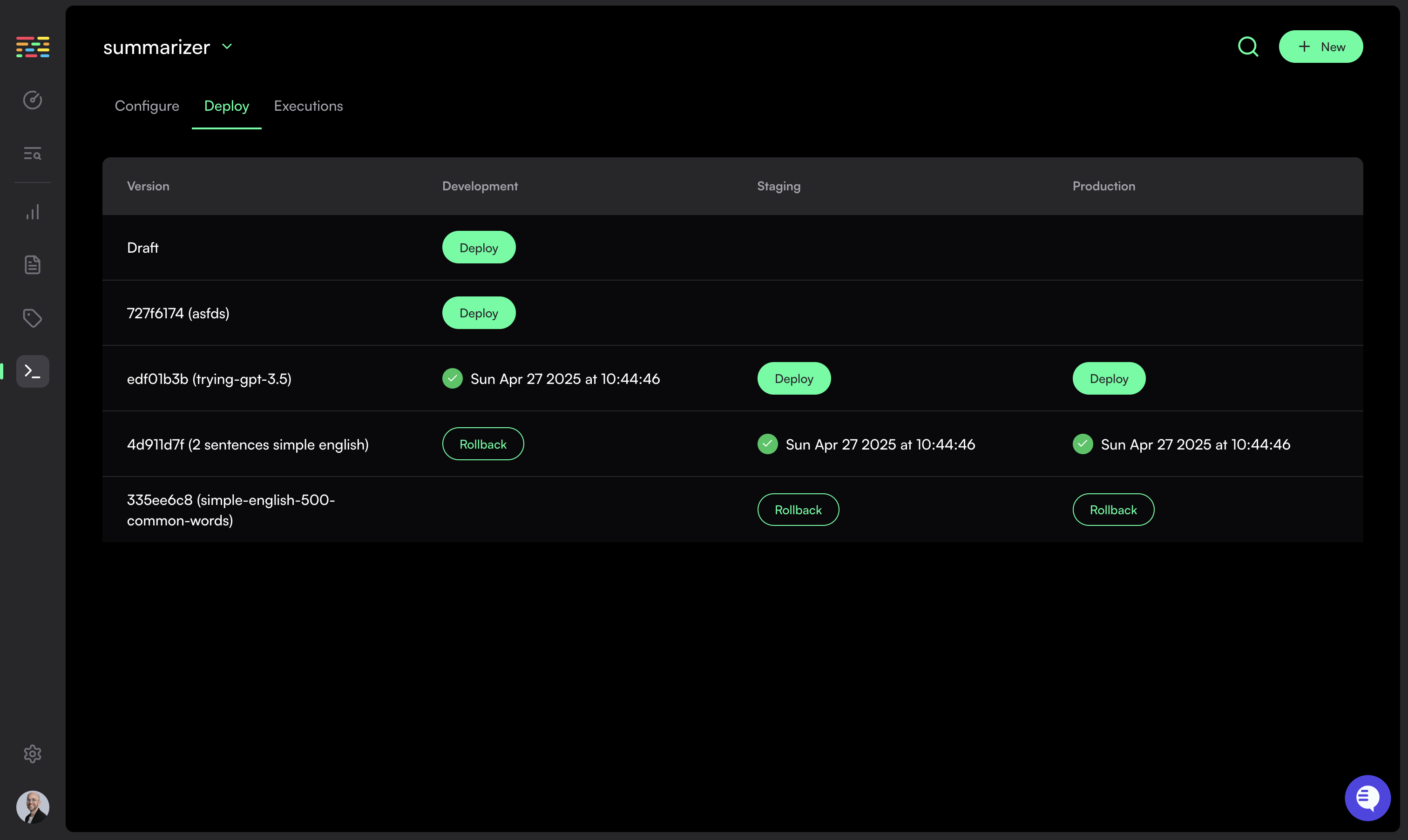
Choose the `Deploy` Tab to navigate to the deployments page for your prompt.
Here, you can see all recent prompt versions, and which environments they are deployed to.
Simply click on the `Deploy` button to deploy a prompt version to an environment. Similarly, click `Rollback` to revert to a previous prompt version for a specific environment.
As a safeguard, you cannot deploy a prompt to the `Staging` environment before
first deploying it to `Development`. Similarly, you cannot deploy to
`Production` without first deploying to `Staging`.
To fetch prompts from a specific environment, you must supply that environment's API key to the Traceloop SDK. See the [SDK Configuration](/openllmetry/integrations/traceloop) for details
## Prompt Versions
If you want to make changes to your prompt after deployment, simply create a new version by clicking on the `New Version` button. New versions will be created in `Draft Mode`.
If you change the names of variables or add/remove existing variables, you
will be required to create a new prompt.
Draft mode prompts can only be deployed to the `development` environment.
Once you are satisfied with the prompt, you can publish it and make it available to deploy in all environments.
Once published, the prompt version cannot be edited anymore.
Choose the `Deploy` Tab to navigate to the deployments page for your prompt.
Here, you can see all recent prompt versions, and which environments they are deployed to.
Simply click on the `Deploy` button to deploy a prompt version to an environment. Similarly, click `Rollback` to revert to a previous prompt version for a specific environment.
As a safeguard, you cannot deploy a prompt to the `Staging` environment before
first deploying it to `Development`. Similarly, you cannot deploy to
`Production` without first deploying to `Staging`.
To fetch prompts from a specific environment, you must supply that environment's API key to the Traceloop SDK. See the [SDK Configuration](/openllmetry/integrations/traceloop) for details
## Prompt Versions
If you want to make changes to your prompt after deployment, simply create a new version by clicking on the `New Version` button. New versions will be created in `Draft Mode`.
If you change the names of variables or add/remove existing variables, you
will be required to create a new prompt.