> ## Documentation Index
> Fetch the complete documentation index at: https://www.traceloop.com/docs/llms.txt
> Use this file to discover all available pages before exploring further.
# Quick Start
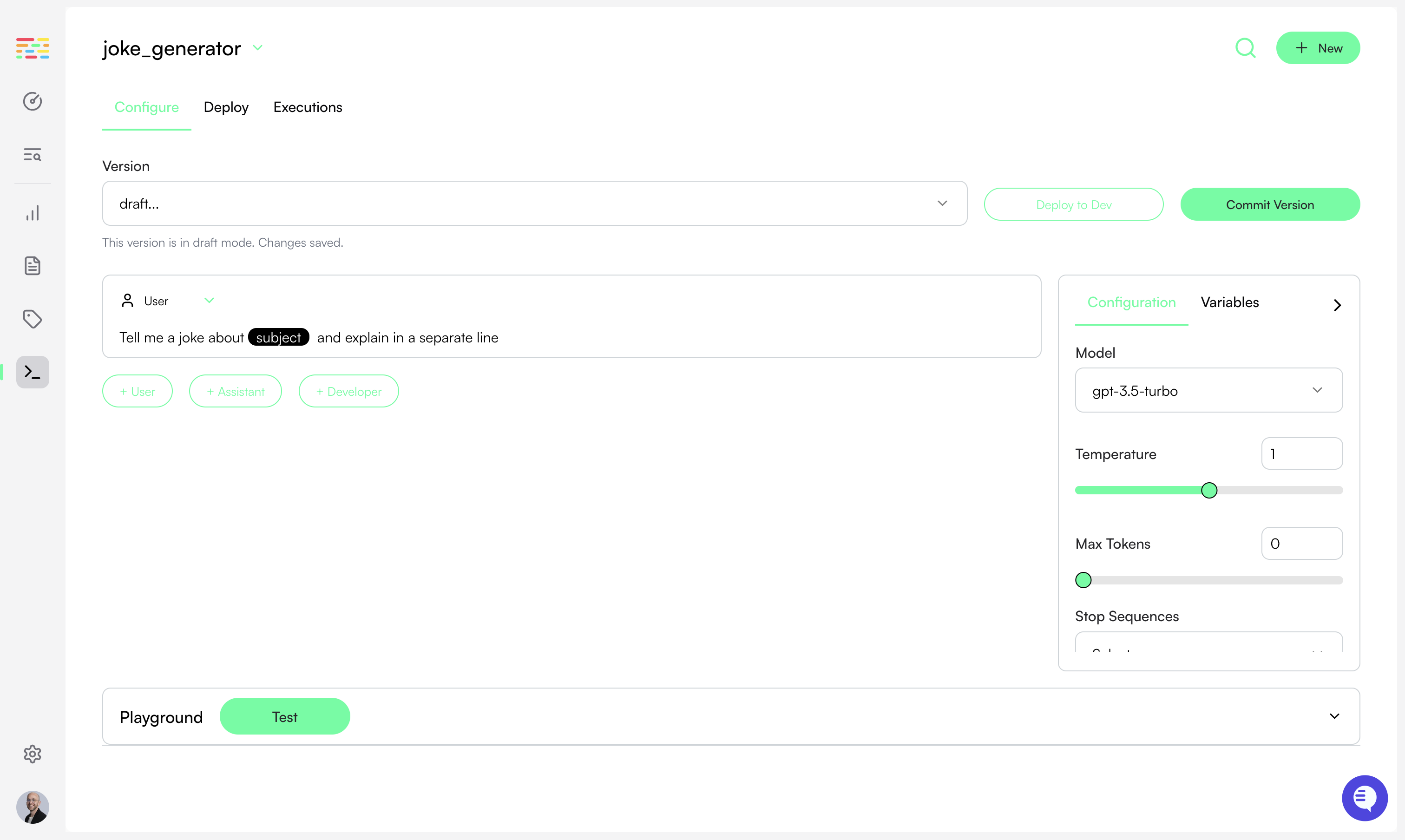
 You can use Traceloop to manage your prompts and model configurations.
That way you can easily experiment with different prompts, and rollout changes gradually and safely.
**Prerequisites:** You need an API key set as the environment variable `TRACELOOP_API_KEY`.
[Generate one in Settings →](/settings/managing-api-keys)
Click **New Prompt** to create a new prompt. Give it a name, which will be used to retrieve it in your code later.
Set the system and/or user prompt. You can use variables in your prompt by
following the [Jinja format](https://jinja.palletsprojects.com/en/3.1.x/templates/) of `{{ variable_name }}`.
The values of these variables will be passed in when you retrieve the prompt in your code.
For more information see the [Registry Documentation](/prompts/registry).
This screen is also a prompt playground. Give the prompt a try by clicking
**Test** at the bottom.
Click **Deploy to Dev** to deploy the prompt to your development environment.
Make sure to initialize the SDK and enable traceloop sync (see below). On
Typescript/Javascript, you should also wait for the initialization to
complete.
```python Python theme={null}
from traceloop.sdk import Traceloop
Traceloop.init(traceloop_sync_enabled=True)
```
```js Typescript / Javascript theme={null}
import * as traceloop from "@traceloop/node-server-sdk";
traceloop.initialize({ traceloopSyncEnabled: true });
await traceloop.waitForInitialization();
```
Retrieve your prompt by using the `get_prompt` function.
For example, if you've created a prompt with the key `joke_generator` and a single variable `persona`:
```python Python theme={null}
from openai import OpenAI
from traceloop.sdk.prompts import get_prompt
client = OpenAI(api_key=os.environ["OPENAI_API_KEY"])
prompt_args = get_prompt(key="joke_generator", variables={"persona": "pirate"})
completion = client.chat.completions.create(**prompt_args)
```
```js Typescript / Javascript theme={null}
import * as traceloop from "@traceloop/node-server-sdk";
const prompt = traceloop.getPrompt("joke_generator", { persona: "pirate" });
const chatCompletion = await openai.chat.completions.create(prompt);
```
```go Go theme={null}
import "github.com/sashabaranov/go-openai"
func call_llm() {
// traceloop is the object you got when you initialized the SDK
request, err := traceloop.GetOpenAIChatCompletionRequest("joke_generator", map[string]interface{}{ "persona": "pirate" })
if err != nil {
fmt.Printf("GetOpenAIChatCompletionRequest error: %v\n", err)
return
}
client := openai.NewClient(os.Getenv("OPENAI_API_KEY"))
resp, err := client.CreateChatCompletion(
context.Background(),
*request,
)
}
```
The returned variable `prompt_args` is compatible with the API used by the
foundation models SDKs (OpenAI, Anthropic, etc.) which means you can directly
plug in the response to the appropriate API call.
For more information see the [SDK Usage Documentation](/prompts/sdk-usage).
You can use Traceloop to manage your prompts and model configurations.
That way you can easily experiment with different prompts, and rollout changes gradually and safely.
**Prerequisites:** You need an API key set as the environment variable `TRACELOOP_API_KEY`.
[Generate one in Settings →](/settings/managing-api-keys)
Click **New Prompt** to create a new prompt. Give it a name, which will be used to retrieve it in your code later.
Set the system and/or user prompt. You can use variables in your prompt by
following the [Jinja format](https://jinja.palletsprojects.com/en/3.1.x/templates/) of `{{ variable_name }}`.
The values of these variables will be passed in when you retrieve the prompt in your code.
For more information see the [Registry Documentation](/prompts/registry).
This screen is also a prompt playground. Give the prompt a try by clicking
**Test** at the bottom.
Click **Deploy to Dev** to deploy the prompt to your development environment.
Make sure to initialize the SDK and enable traceloop sync (see below). On
Typescript/Javascript, you should also wait for the initialization to
complete.
```python Python theme={null}
from traceloop.sdk import Traceloop
Traceloop.init(traceloop_sync_enabled=True)
```
```js Typescript / Javascript theme={null}
import * as traceloop from "@traceloop/node-server-sdk";
traceloop.initialize({ traceloopSyncEnabled: true });
await traceloop.waitForInitialization();
```
Retrieve your prompt by using the `get_prompt` function.
For example, if you've created a prompt with the key `joke_generator` and a single variable `persona`:
```python Python theme={null}
from openai import OpenAI
from traceloop.sdk.prompts import get_prompt
client = OpenAI(api_key=os.environ["OPENAI_API_KEY"])
prompt_args = get_prompt(key="joke_generator", variables={"persona": "pirate"})
completion = client.chat.completions.create(**prompt_args)
```
```js Typescript / Javascript theme={null}
import * as traceloop from "@traceloop/node-server-sdk";
const prompt = traceloop.getPrompt("joke_generator", { persona: "pirate" });
const chatCompletion = await openai.chat.completions.create(prompt);
```
```go Go theme={null}
import "github.com/sashabaranov/go-openai"
func call_llm() {
// traceloop is the object you got when you initialized the SDK
request, err := traceloop.GetOpenAIChatCompletionRequest("joke_generator", map[string]interface{}{ "persona": "pirate" })
if err != nil {
fmt.Printf("GetOpenAIChatCompletionRequest error: %v\n", err)
return
}
client := openai.NewClient(os.Getenv("OPENAI_API_KEY"))
resp, err := client.CreateChatCompletion(
context.Background(),
*request,
)
}
```
The returned variable `prompt_args` is compatible with the API used by the
foundation models SDKs (OpenAI, Anthropic, etc.) which means you can directly
plug in the response to the appropriate API call.
For more information see the [SDK Usage Documentation](/prompts/sdk-usage).