> ## Documentation Index
> Fetch the complete documentation index at: https://www.traceloop.com/docs/llms.txt
> Use this file to discover all available pages before exploring further.
# Column Management
> Learn all columns general functionalities
Columns in the Playground can be reordered, edited, or deleted at any time to adapt your workspace as your analysis evolves. Understanding how to manage columns effectively helps you maintain organized and efficient playgrounds.
## Columns Settings
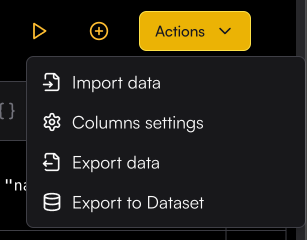
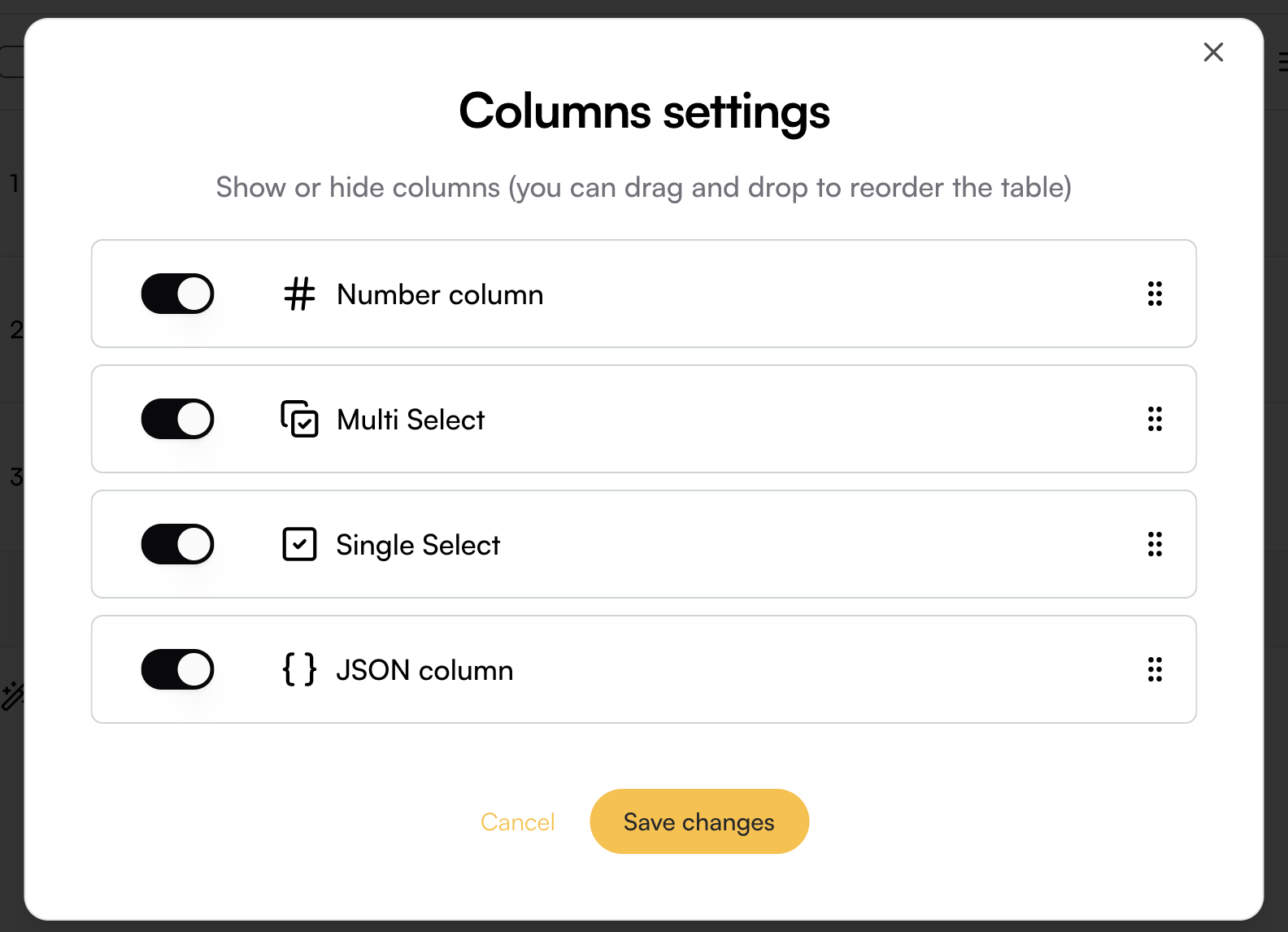
Column Settings lets you hide specific columns from the Playground and reorder them as needed. To open the settings, click the Playground Action button and select Column Settings
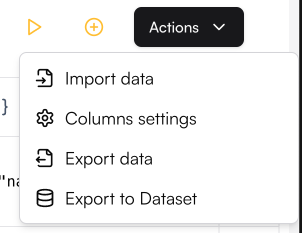
 To change the column order, use the six-dot handle on the right side of each column to simply drag the column into the desired position.
To hide a column, toggle its switch in the menu.
Columns can also be reordered by dragging them to your desired position in the playground
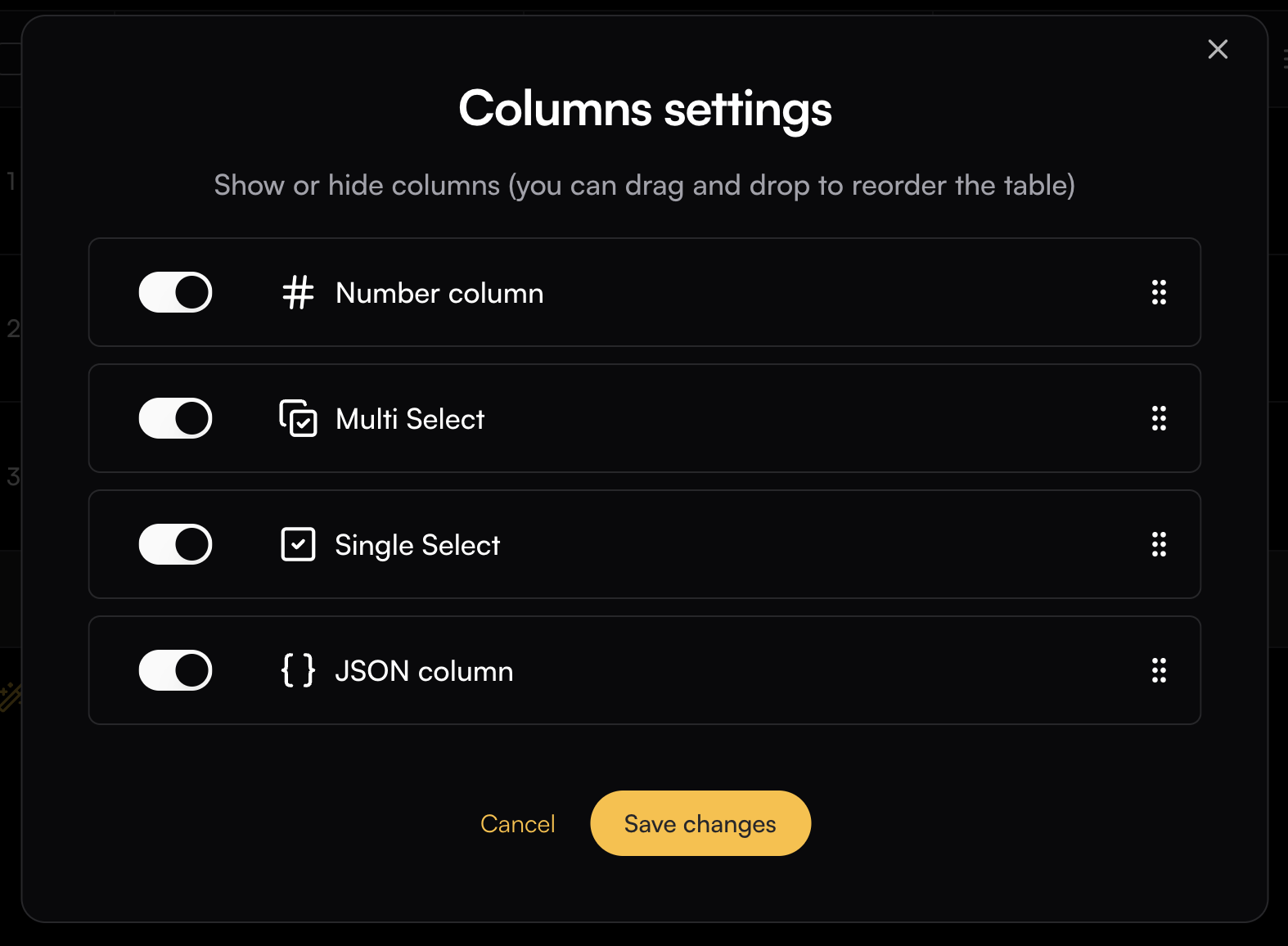
To change the column order, use the six-dot handle on the right side of each column to simply drag the column into the desired position.
To hide a column, toggle its switch in the menu.
Columns can also be reordered by dragging them to your desired position in the playground
 ## Columns Actions
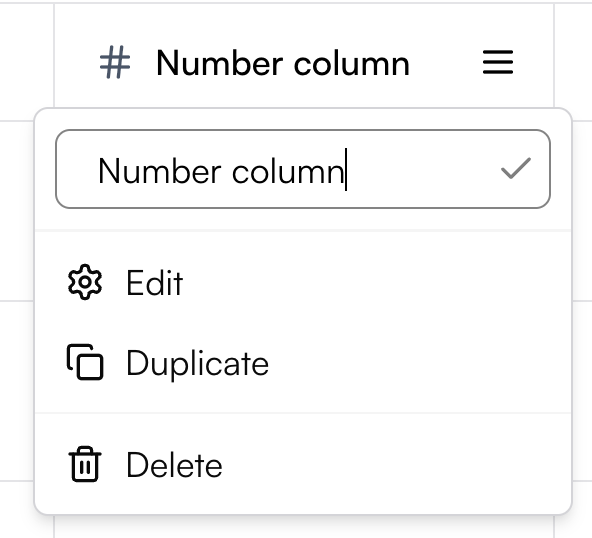
Each column has a menu that lets you manage and customize it. From this menu, you can:
* Rename the column directly by editing its title
* Edit the column configuration
* Duplicate the column to create a copy with the same settings
* Delete the column if it’s no longer needed
## Columns Actions
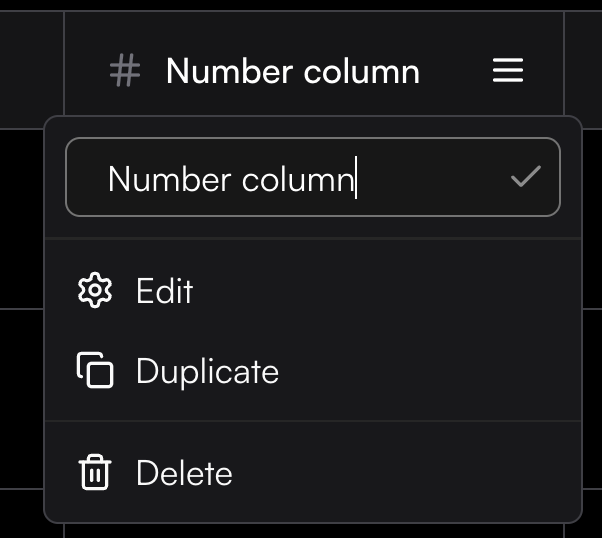
Each column has a menu that lets you manage and customize it. From this menu, you can:
* Rename the column directly by editing its title
* Edit the column configuration
* Duplicate the column to create a copy with the same settings
* Delete the column if it’s no longer needed