> ## Documentation Index
> Fetch the complete documentation index at: https://www.traceloop.com/docs/llms.txt
> Use this file to discover all available pages before exploring further.
# Defining Monitors
> Learn how to create and configure monitors to evaluate your LLM outputs
Monitors in Traceloop allow you to continuously evaluate your LLM outputs in real time. This guide walks you through the process of creating and configuring monitors for your specific use cases.
## Creating a Monitor
To create a monitor, you need to complete these steps:
Connect the SDK to your system and add decorators to your flow. See [OpenLLMetry](/openllmetry/introduction) for setup instructions.
Select the evaluation logic that will run on matching spans. You can define your own custom evaluators or use the pre-built ones by Traceloop. See [Evaluators](/evaluators/intro) for more details.
Set criteria that determine which spans the monitor will evaluate.
Set up how the monitor operates, including sampling rates and other advanced options.
### Basic Monitor Setup
Navigate to the Monitors page and click the **New** button to open the Evaluator Library. Choose the evaluator you want to run in your monitor.
Next, you will be able to configure which spans will be monitored.
## Span Filtering
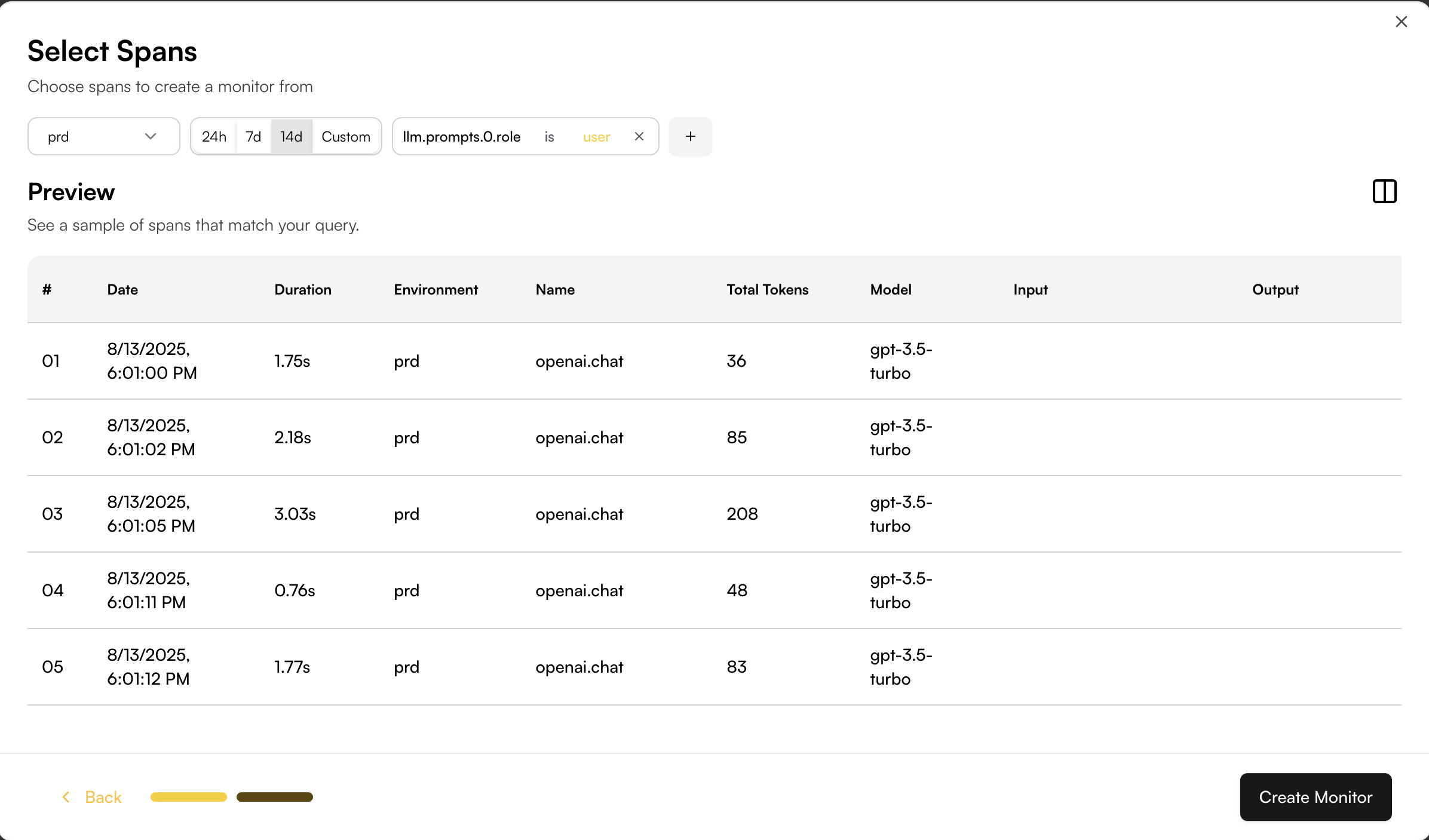
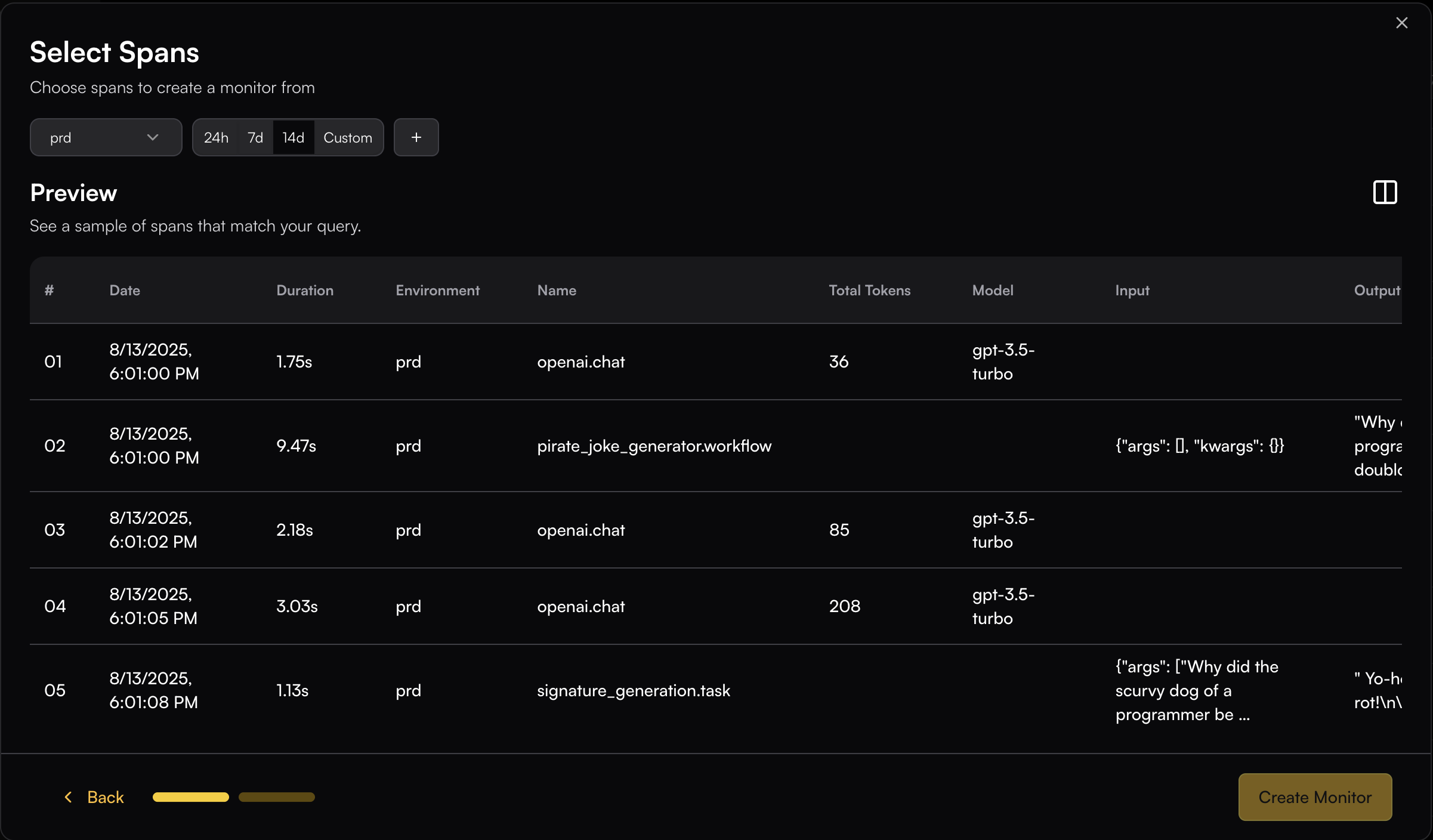
The span filtering modal shows the actual spans from your system, letting you see how your chosen filters apply to real data.
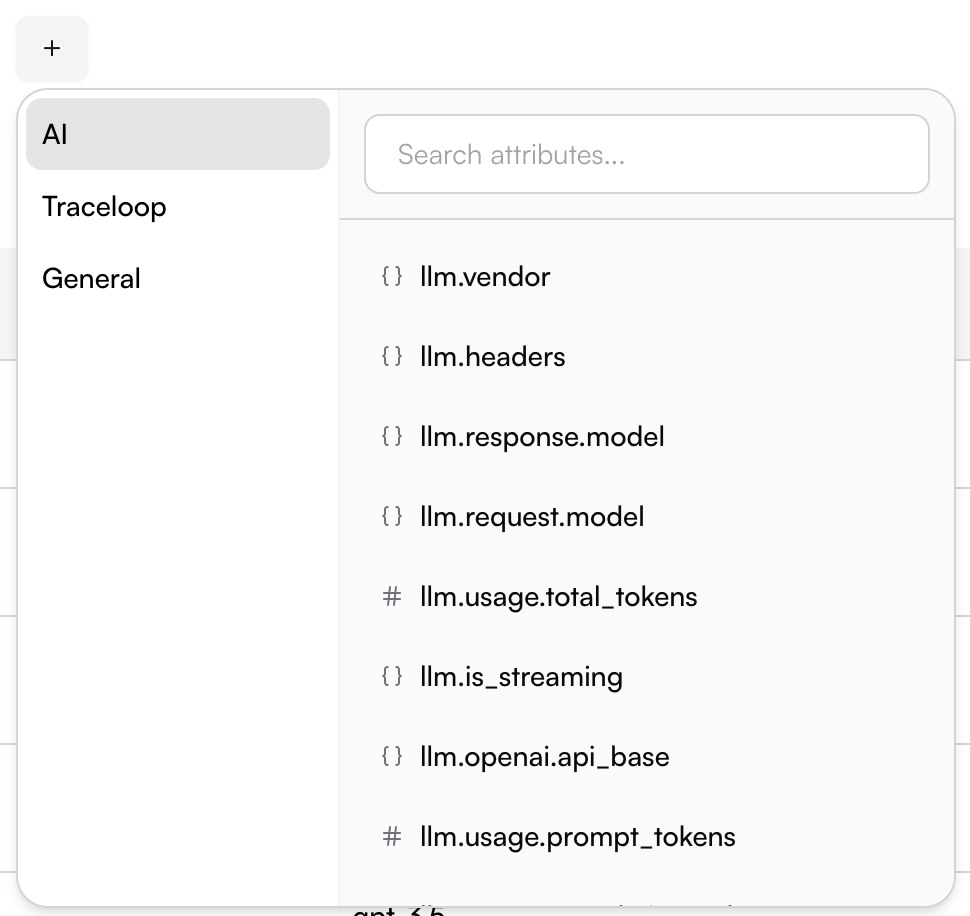
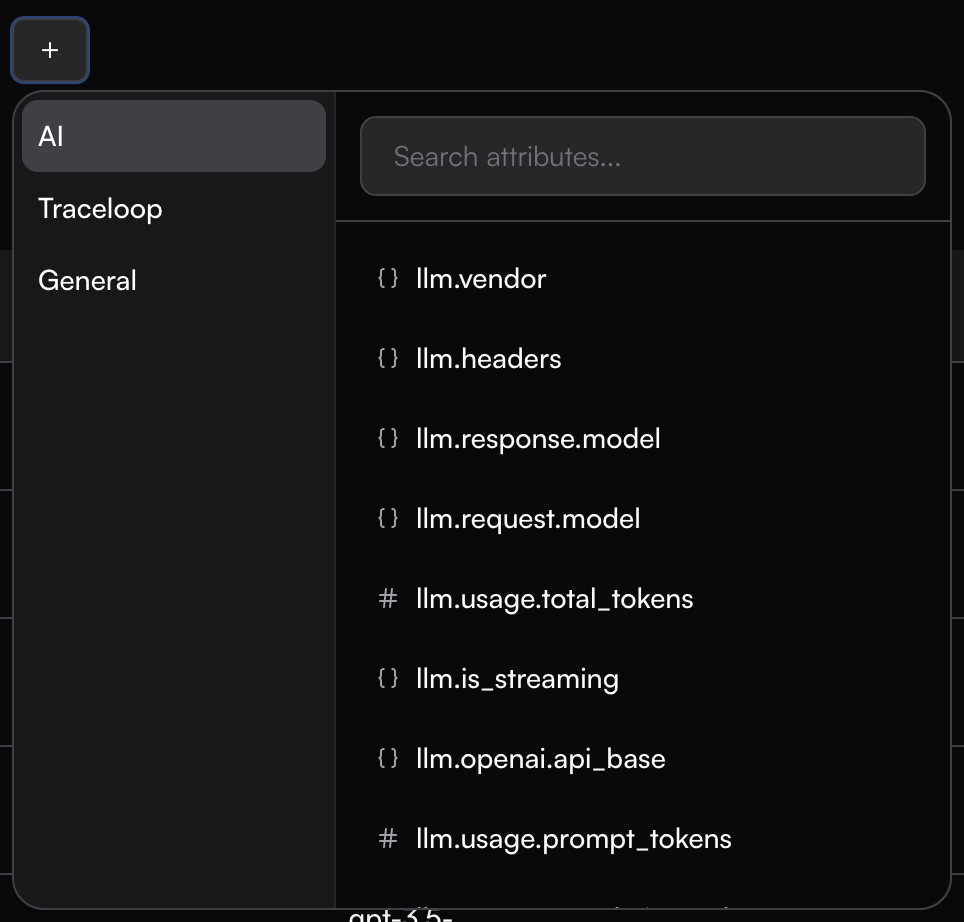
Add filters by clicking on the + button.
 ### Filter Options
* **Environment**: Filter by a specific environment
* **Workflow Name**: Filter by the workflow name defined in your system
* **Service Name**: Target spans from specific services or applications
* **AI Data**: Filter based on LLM-specific attributes like model name, token usage, streaming status, and other AI-related metadata
* **Attributes**: Filter based on span attributes
### Filter Options
* **Environment**: Filter by a specific environment
* **Workflow Name**: Filter by the workflow name defined in your system
* **Service Name**: Target spans from specific services or applications
* **AI Data**: Filter based on LLM-specific attributes like model name, token usage, streaming status, and other AI-related metadata
* **Attributes**: Filter based on span attributes
 ## Monitor Settings
### Map Input
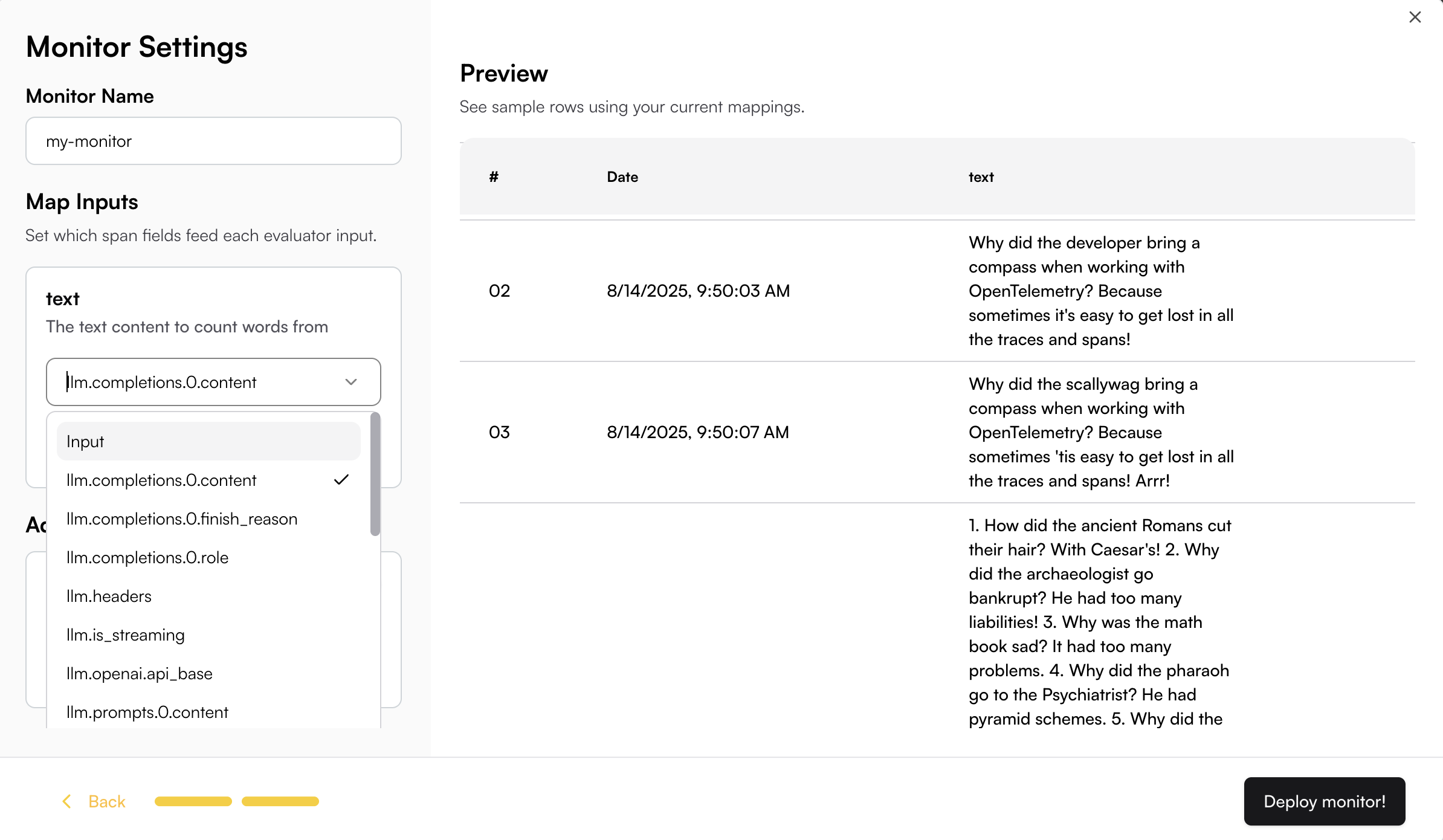
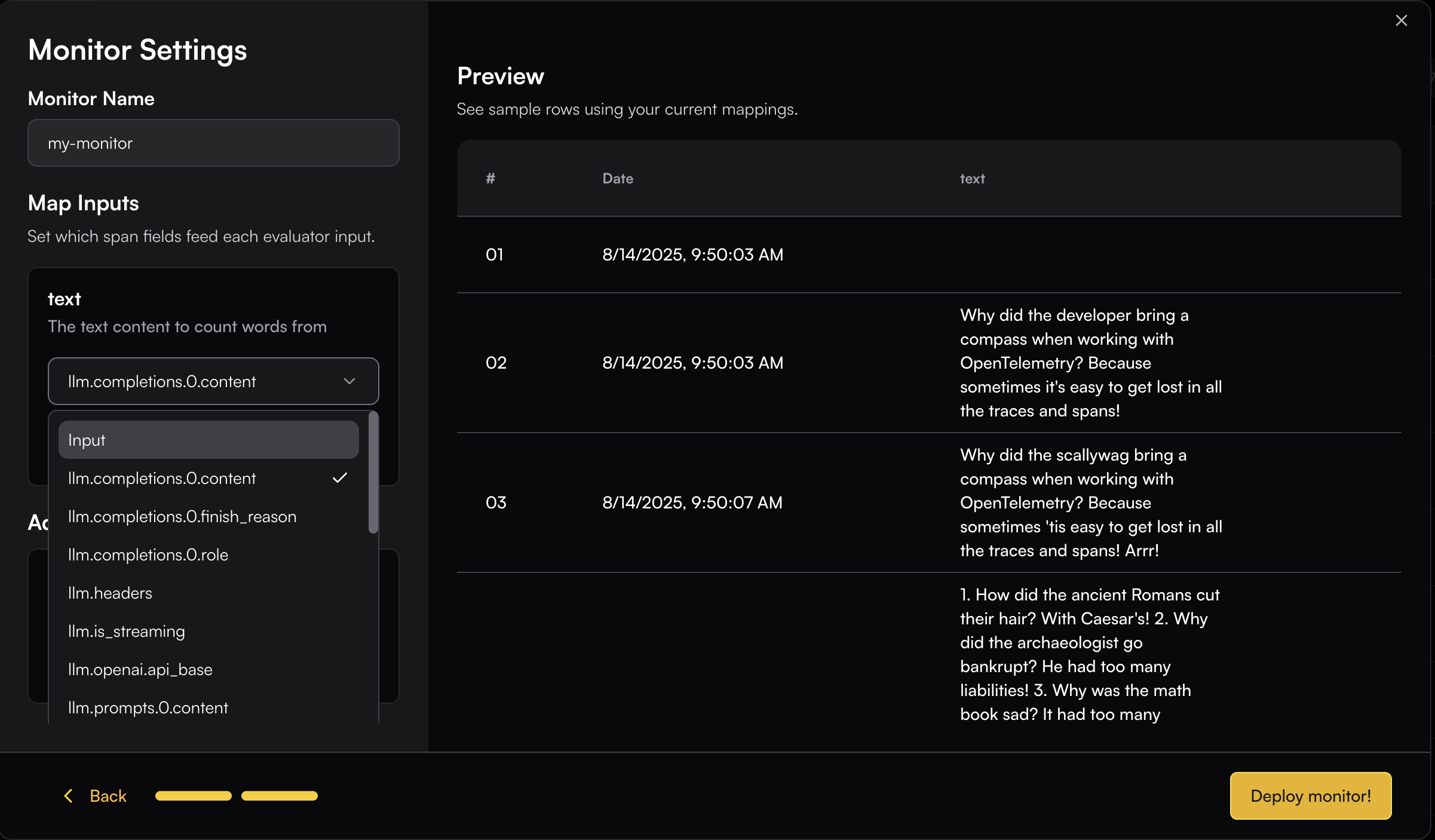
You need to map the appropriate span fields to the evaluator’s input schema.
This can be done easily by browsing through the available span field options—once you select a field, the real data is immediately displayed so you can see how it maps to the input.
## Monitor Settings
### Map Input
You need to map the appropriate span fields to the evaluator’s input schema.
This can be done easily by browsing through the available span field options—once you select a field, the real data is immediately displayed so you can see how it maps to the input.
 When the field data is not plain text, you can use JSON key mapping or Regex to extract the specific content you need.
For example, if your content is an array and you want to extract the "text" field from the object:
```json theme={null}
[{"type":"text","text":"explain who are you and what can you do in one sentence"}]
```
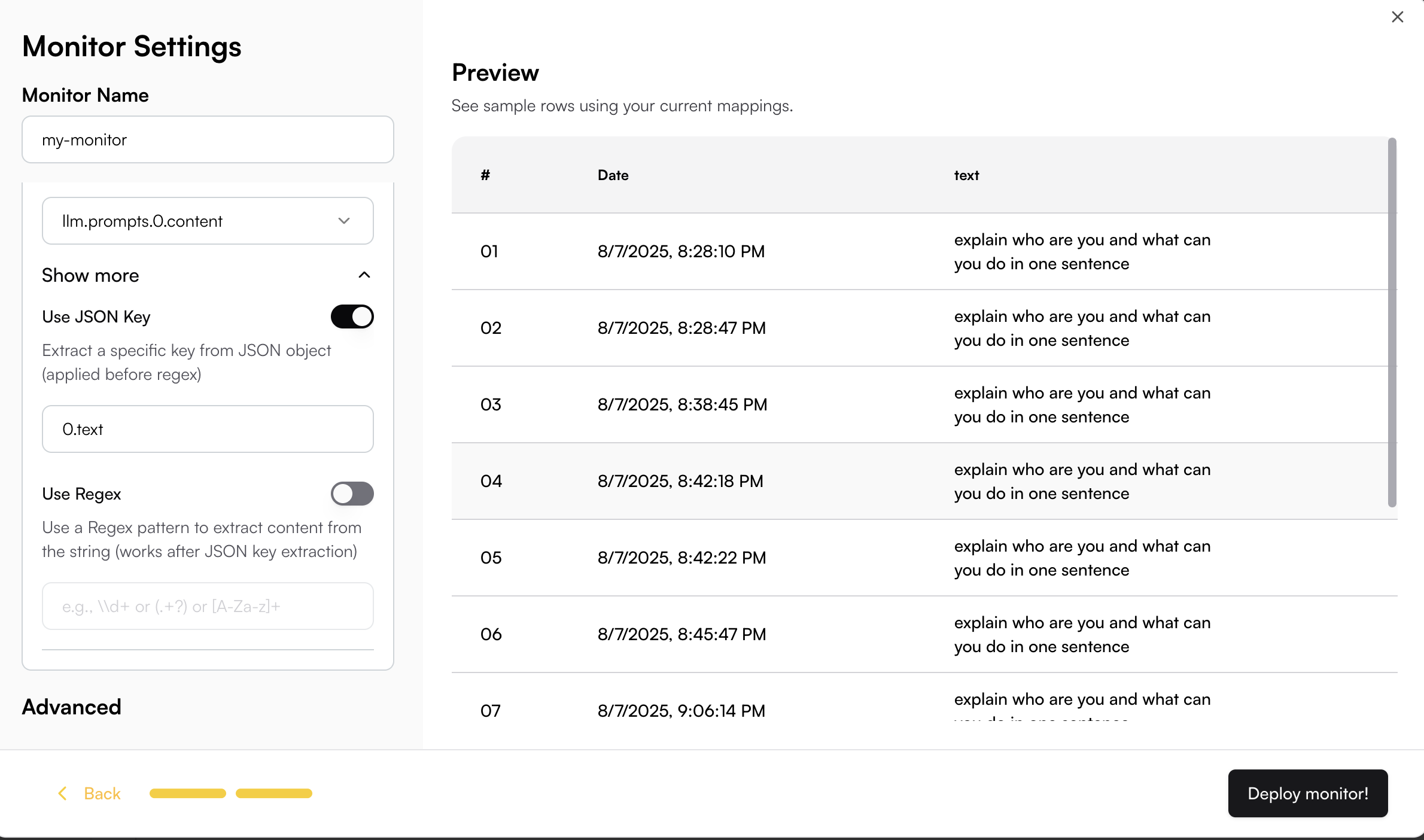
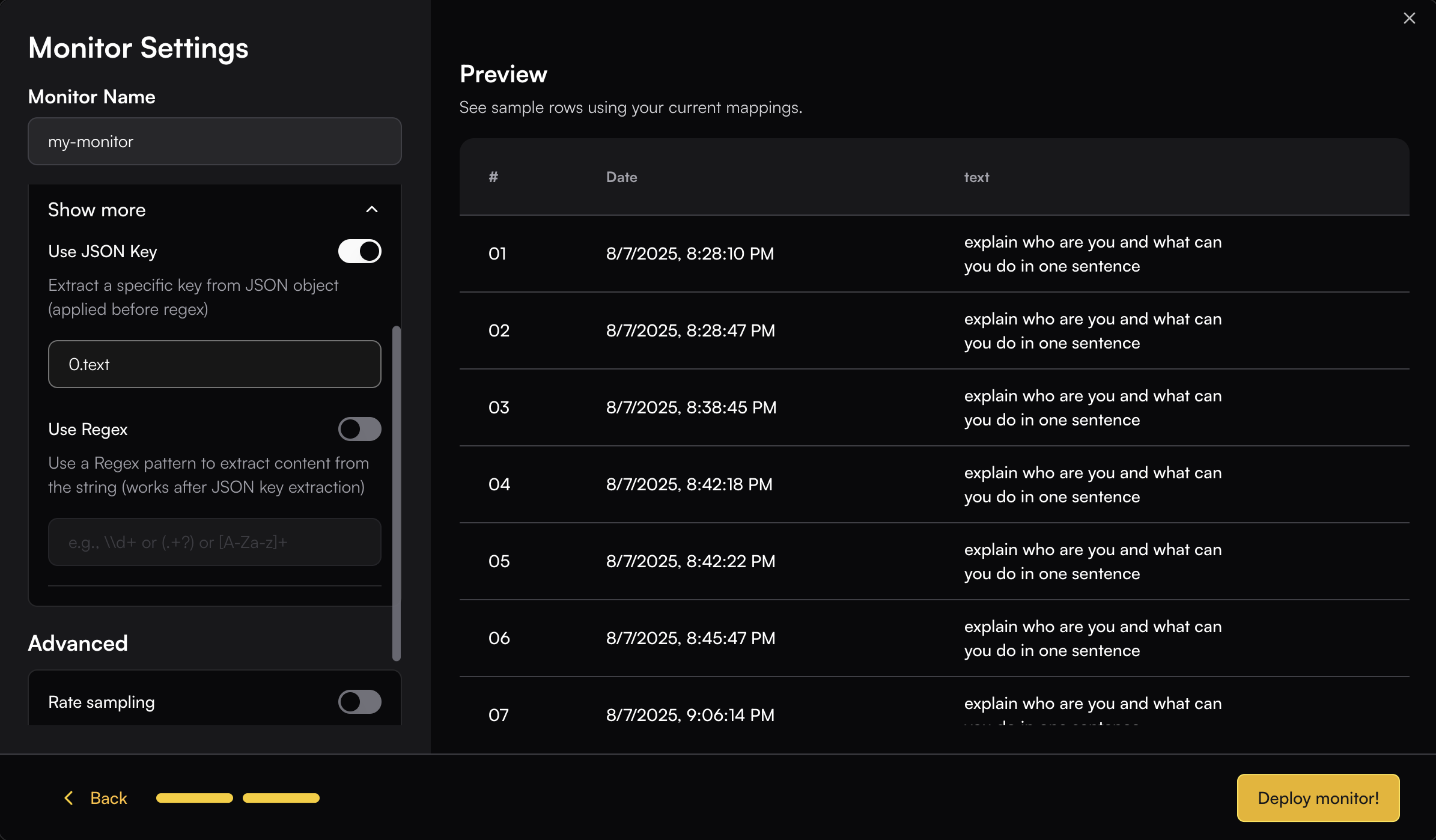
You can use JSON key mapping like `0.text` to extract just the text content. The JSON key mapping will be applied to the Preview table, allowing you to see the extracted result in real-time.
When the field data is not plain text, you can use JSON key mapping or Regex to extract the specific content you need.
For example, if your content is an array and you want to extract the "text" field from the object:
```json theme={null}
[{"type":"text","text":"explain who are you and what can you do in one sentence"}]
```
You can use JSON key mapping like `0.text` to extract just the text content. The JSON key mapping will be applied to the Preview table, allowing you to see the extracted result in real-time.
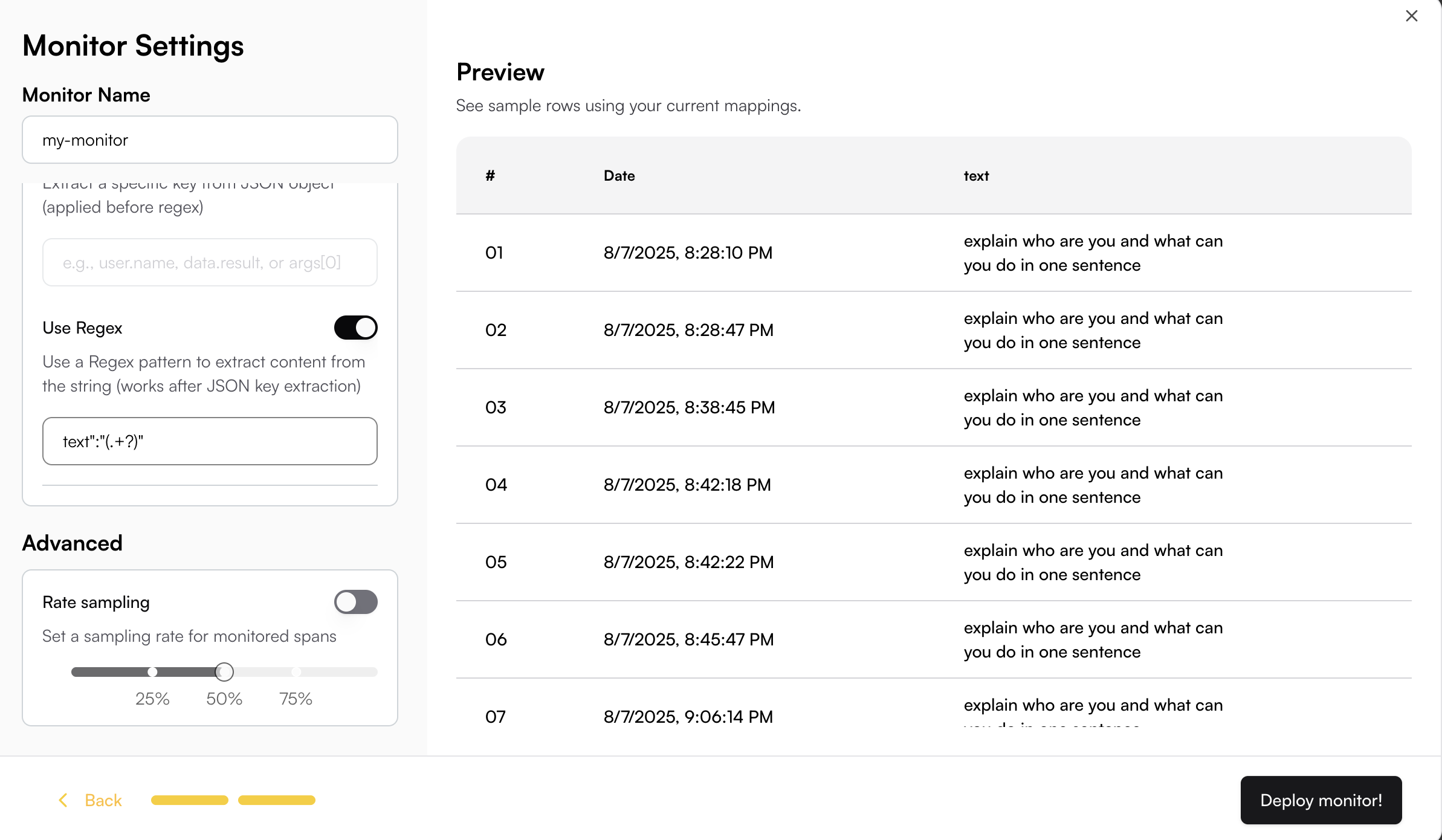
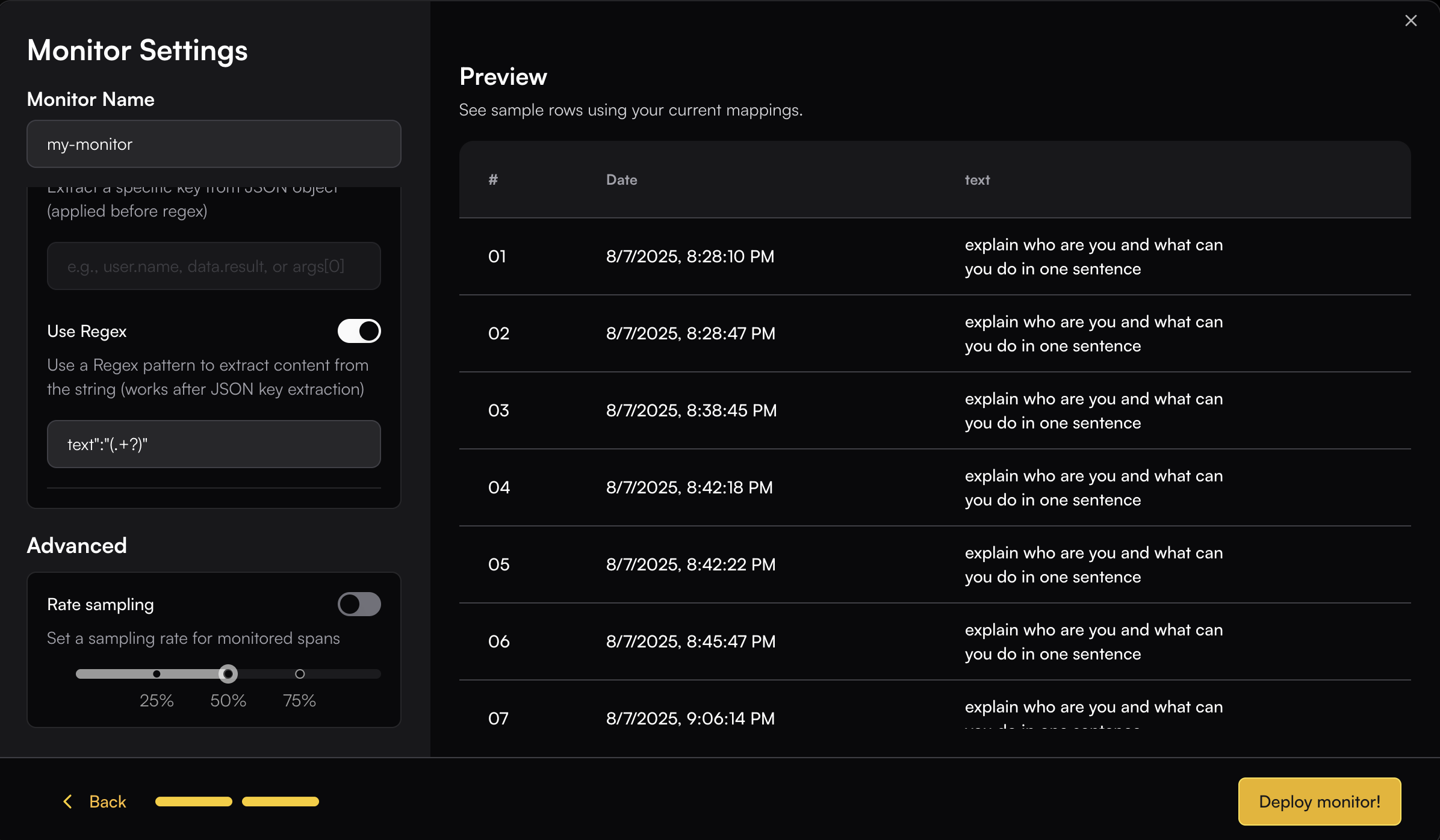
 You can use Regex like `text":"(.+?)"` to extract just the text content. The regex will be applied to the Preview table, allowing you to see the extracted result in real-time.
 ### Advanced
You can set a **Rate sample** to control the percentage of spans within the selected filter group that the monitor will run on.
### Advanced
You can set a **Rate sample** to control the percentage of spans within the selected filter group that the monitor will run on.