> ## Documentation Index
> Fetch the complete documentation index at: https://www.traceloop.com/docs/llms.txt
> Use this file to discover all available pages before exploring further.
# Slack
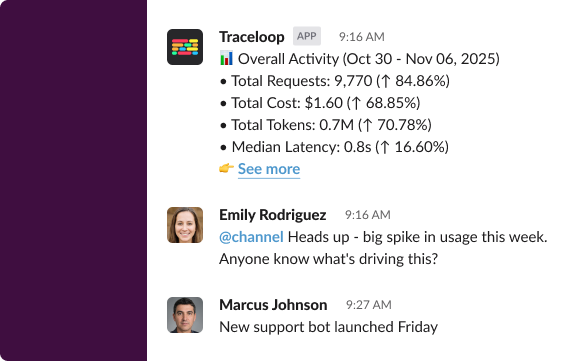
> Get daily or weekly messages about your AI flows directly in Slack
Connecting Traceloop to Slack allows you to receive automated updates about your AI flows. You can configure daily or weekly messages to stay informed about your application's performance and insights.
Go to the [integrations page](https://app.traceloop.com/settings/integrations) within Traceloop and click on the Slack card.
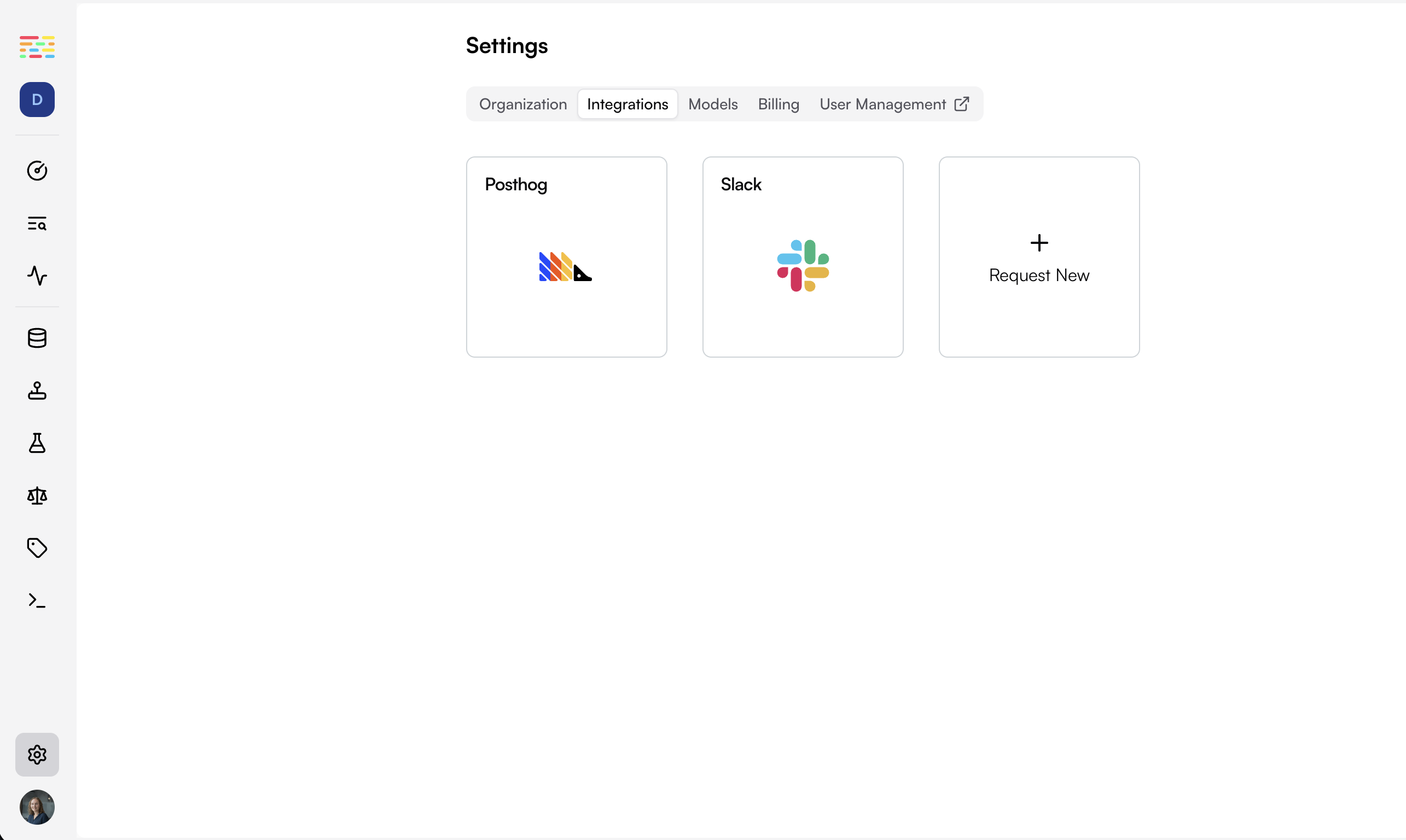
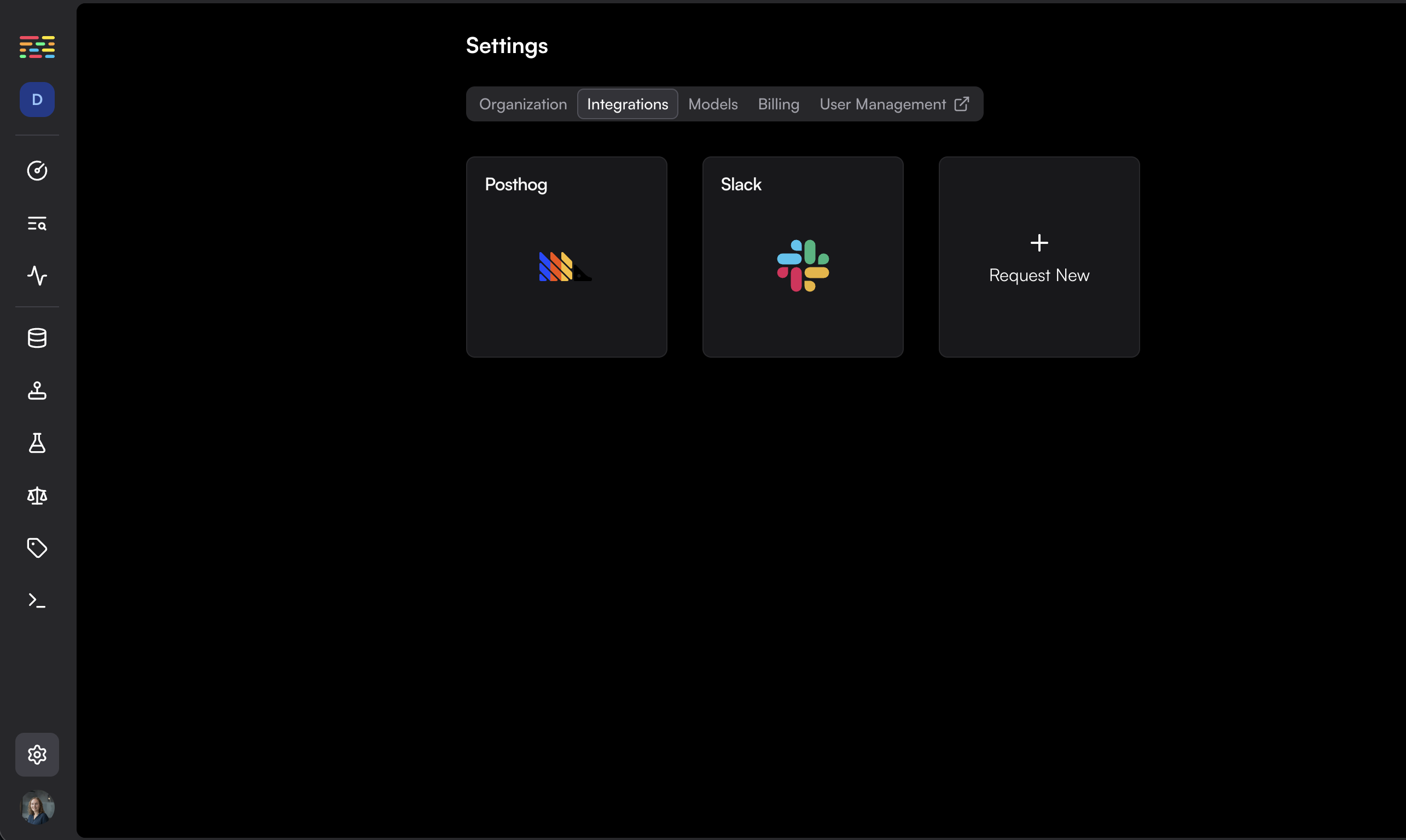 Click on the Slack integration and follow the "Connect to Slack" button to authorize Traceloop to send messages to your Slack workspace.
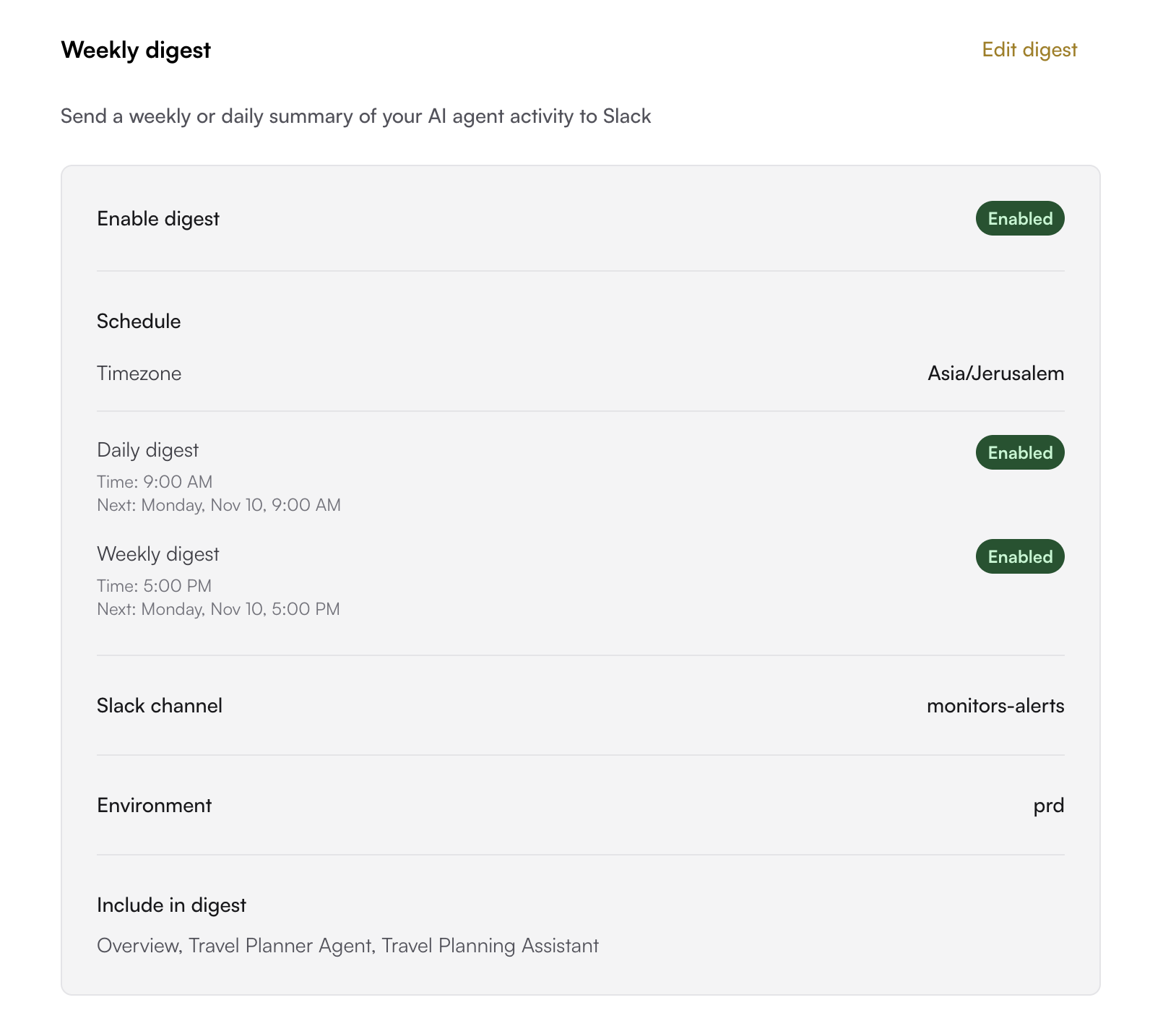
Choose your notification preferences:
* Select the Slack channel where you want to receive updates
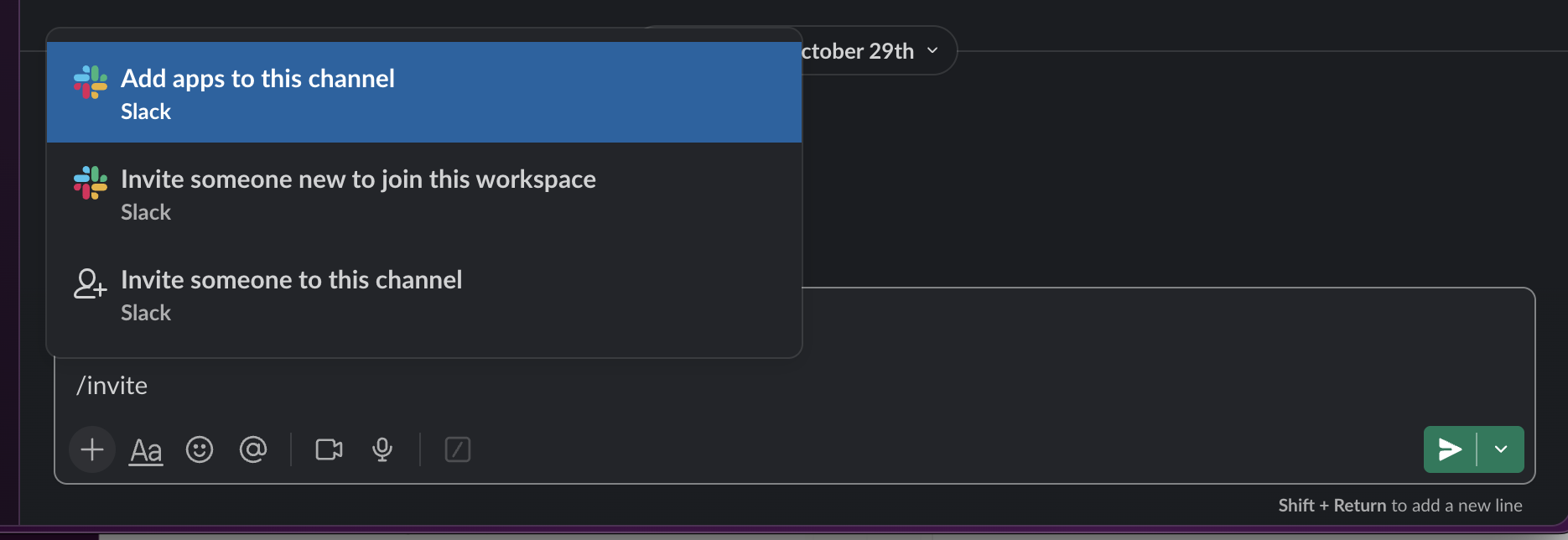
**Important:** Make sure to invite the Traceloop app to the channel before enabling the integration.
Click on the Slack integration and follow the "Connect to Slack" button to authorize Traceloop to send messages to your Slack workspace.
Choose your notification preferences:
* Select the Slack channel where you want to receive updates
**Important:** Make sure to invite the Traceloop app to the channel before enabling the integration.
 * Select the desired schedule - daily/weekly
* Set the required time and timezone
* Choose which environment to monitor
* Select the desired schedule - daily/weekly
* Set the required time and timezone
* Choose which environment to monitor
 **That's it!**
You'll now receive automated messages in your chosen Slack channel with insights about your AI flows, including key metrics and performance updates.
**That's it!**
You'll now receive automated messages in your chosen Slack channel with insights about your AI flows, including key metrics and performance updates.